Author Archives: BC
First Impressions – iPad Pro
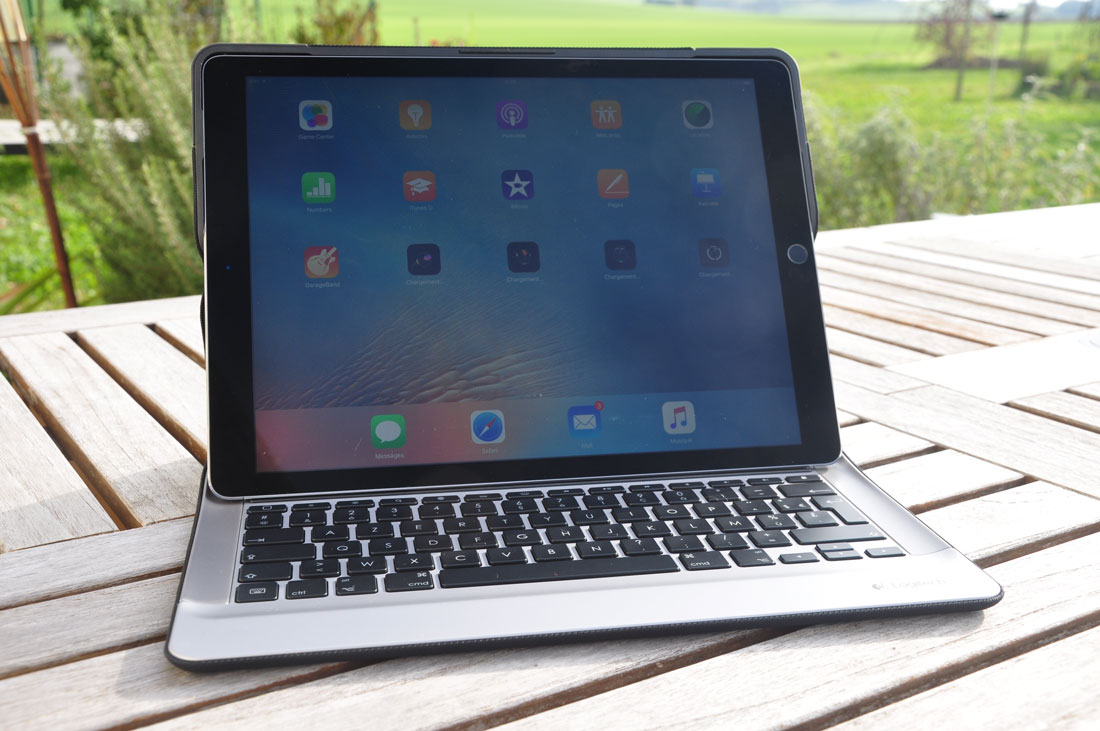
For years there has been buzz about a giant iPad. An iPad that could take on the Surface tablet (which loves to point out how it beats the Macbook Air in side-by-side commercials). An iPad that would finally be as much about content creation as it is about content consumption. An iPad to rule them all. In September those rumors proved true, when Apple announced the iPad Pro. A gigantic iPad with a screen size of nearly 13 inches. With increased processing power, and all the bells and whistles you’d expect from a $1000 laptop (with similar price tag). For months the only people who could tell us anything were people in the tech review industry (i.e. tech geeks) and Apple itself (um…conflict of interest). But last week I finally got my hands on one. I’ve had it for about 5 days, and these are my first impressions.
It’s an iPad
 Let’s get this out of the way first thing. Yes, it’s a huge iPad. It looks like some mad scientist zapped the old iPad with some type of engorgement ray. Partnered with the classic “smart cover” the device looks pretty ridiculous at first glance. It’s just a big iPad. What good is that? I asked myself that question immediately after getting it into my hands. Sure, it’s a very nice iPad. It’s modeled after the current line of iPad Air 2. That means it’s super thin, very light, and has nice features like touch ID and improved cameras. While some apps have already been optimized for the larger screen, the vast majority of applications are just larger versions of their iPad Air counterparts. I’m reminded of the time when the first iPad came out and all of its apps were just iPhone apps blown up. Things are much better here, going from “little iPad” to “big iPad” but the comparison is worth noting. And just like what happened back then, the apps for iPad Pro will soon take on a life of their own, as developers start taking advantage of that massive 12.7 inch screen; not to mention taking advantage of the multitasking feature (also available on iPad Air 2) and the new Apple Pencil (a stylus). Right now this is a big iPad, but it won’t be that for long.
It’s a Laptop
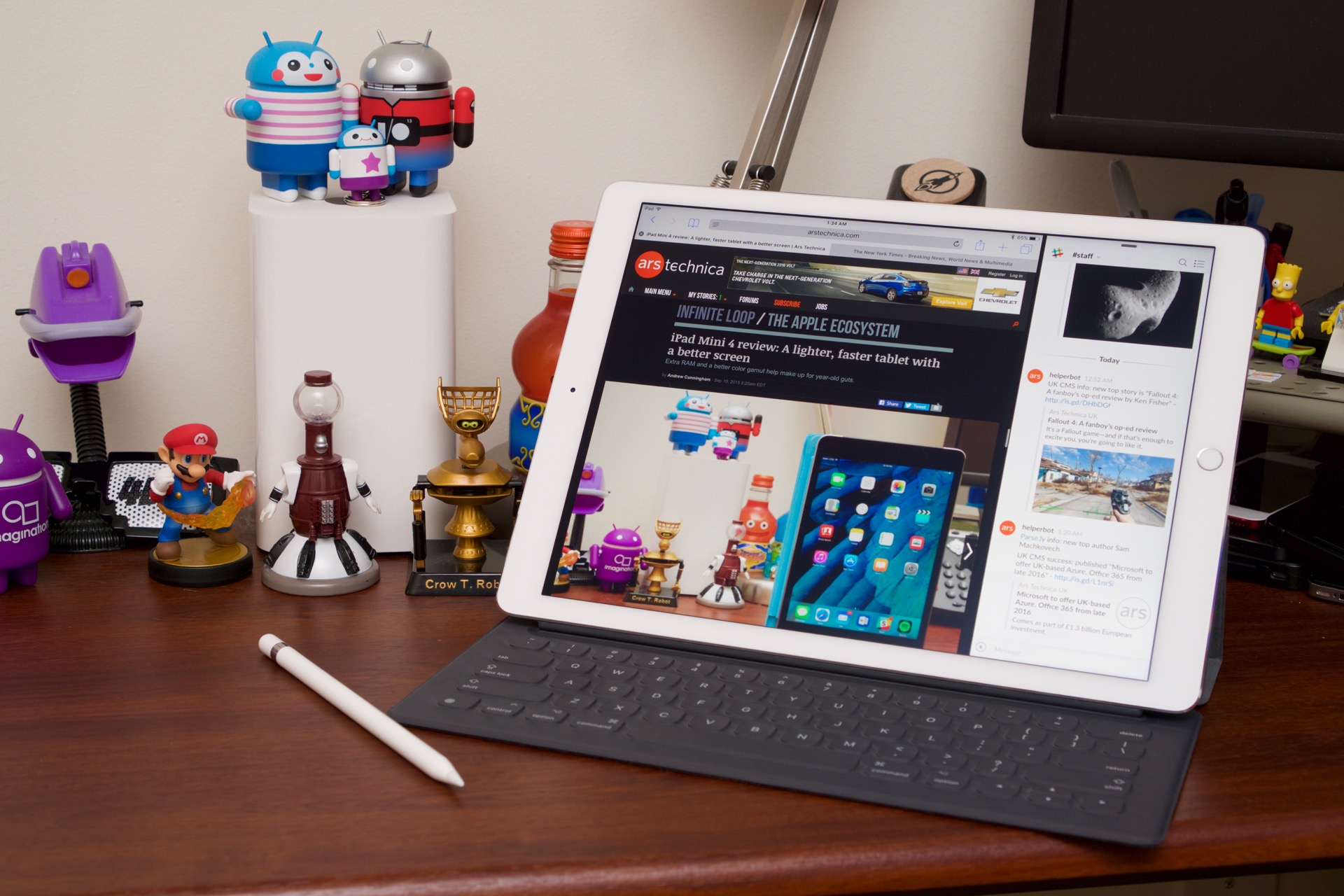 It took a couple of days to convince me of that statement. At first I didn’t see it. I’ve paired my iPad Air 2 with a bluetooth keyboard before. Heck, I’ve paired my iPad Mini with the slick Bluetooth keyboard from NewTrent, and got to pretend like I had the world’s tiniest macbook. But the iPad Pro is a different matter altogether. Unlike these previous hybrids, the iPad Pro is not pretending to be anything more than what it actually is. It’s a laptop (with a couple caveats of course). So what makes a big iPad a laptop? Let’s break it down.
Screen Size/Resolution – The first feature that easily distinguishes a laptop from a tablet PC is screen size. For  comparison let’s talk smartphones. When you cross 5.5 inches in screen size, the industry stops calling it a phone, and starts calling it a “phablet”, which is a hybrid of the terms “phone” and “tablet”. Once you hit 7 inches in screen real estate the term “tablet” seems to be universal. Usually the “phone” element disappears at this screen size too. That term sticks around all the way through the current “full size tablets” like iPad Air 2, Nexus 9, and Microsoft Surface Pro 4. But tablets are getting even bigger. They are becoming laptops. Please God, don’t let their ever be a “laptab” or a “tabtop”. Most entry level laptops start at 11inches (examples). So at almost 13 inches corner to corner, the iPad has the right screen size. It should be noted that the screen resolution of the iPad Pro is on par with the Macbook Air, so check that box off as well.
Keyboard – This one is huge. Laptops have always had keyboards. Sure, many hybrid laptops these days have  detachable screens, but the key function of the computer is found in its keyboard. It’s how you do everything. It’s how I’m typing this post right now (on the iPad Pro!). Email, web browsing, writing school papers, and the like. All require a good keyboard. And bluetooth keyboards are more often than not, pretty crappy. I’ve had a couple of decent ones, but even those I always know I’m going to deal with disconnection issues and battery life. For a tablet to become a laptop you need a keyboard that is literally part of the overall machine (no bluetooth, no battery charging). And Apple has done it with the iPad Pro. They introduced the new “Smart Keyboard” ($169) which connects to the iPad Pro using a new “Smart Connector” which are circles on the side of the iPad Pro that connect to 3 beads of metal on the keyboard case. I’m currently using the Logitech Create Keyboard ($150), which protects the iPad all around (the Smart Keyboard only covers the front). It’s adds twice the weight and three times the thickness, but it also makes the iPad Pro feel like a laptop (and is still the lightest laptop I’ve ever had). Finally, the keyboard must have keys that CLICK. Some might argue with me here, and perhaps the next generation will be more comfortable typing on flat surfaces, but I still need the response of the click. The feel of the button vastly improves my typing rate and minimizes my spelling errors.
Processor – Quick note, cause I know this one is super geeky. For a tablet to be a laptop, it needs to be able to work just as hard in terms of processing power. The processor is crucial to everything from how fast your applications run, how effective multitasking will be, even simply how responsive all those cool games will be. The iPad Pro has a processor on par with the Macbook Air, so again, no silver medal for the tablet this round.
It’s still missing some stuff
So I’ve made my arguments for why i consider the iPad Pro a laptop. I’d be a fool to refuse to face the gaps that are clearly there. So here is what the iPad Pro is still missing. First off, it is missing a MOUSE or TRACKPAD. Those are bold for a reason. It’s essential to have another way to interact with your screen besides your finger. But what about the Apple Pencil? The stylus could replace the mouse, right? I do think that the stylus is a great tool. I wish the iPhone 6 Plus had one. The Samsung Galaxy Note 5 has an awesome stylus. But that’s an accessory, and we are talking about the iPad Pro as a laptop. The stylus is useful but not integral to the laptop model. What is integral is either a trackpad, or option to attach a mouse. And the iPad Pro offers neither option, and that is an issue. This is particularly painful when I’m trying to edit something in a Word doc (like, say, this blog post). A trackpad/mouse would make that process much easier, and would feel like a laptop. So the iPad Pro needs something, even if it’s an over-priced bluetooth enabled trackpad to pair to it. It would be better to put
 it right into the case, like the Microsoft Surface has always done! The next gap is USB support. For the iPad Pro to be a laptop it must allow for peripherals. This is where the whole mouse thing could be dealt with. But this is also where you could add some extra memory options for the woefully inadequate 32GB storage in the cheapest model. Apple seems to believe that Bluetooth/WIFI connected devices are the future, and everyone wants to store their content in the Cloud. Maybe they’ll be proven right, but for now those missing USB ports (found easily on any other competitor of this size) are going to hold some people back from believing this device could ever replace the laptop. The last thing missing are optimized apps, but those will come. I wish that the device ran a hybrid of the Macbook OS (currently El Capitan) but for now we’re stuck with iOS. But 3rd party developers seem to like making money, so I’m sure they’ll save the day sooner rather than later.
The Whole Cup Summed Up

I wanted to hate the iPad Pro. I wanted to say it’s just a big iPad. That it isn’t going to replace the laptop. But I was wrong on most of those counts. I set my Macbook aside for the past 5 days and have used this iPad Pro as my laptop exclusively, and it’s proven itself to me. I am certain that this device is just the first step towards a whole new kind of laptop. Microsoft has had the “tablet/laptop hybrid” market more or less to themselves with the Surface line of tablets. They have had a blast mocking how versatile the Surface Pro is compared to the Macbook Air. And if not for the issues that plagued those devices around Windows 8, we might be saying Microsoft redefined the field. But that playing field is starting to level out. It’s not there yet. The iPad Pro has a couple gaping holes that the competition is sure to point out right away. No trackpad!!!? No USB ports!?!?! That’s just a huge iPad and not a content creation machine!! That’s what they will say. But they would be wrong. The iPad Pro is a laptop. It’s a first gen for Apple, and it’s an indicator of something new to come. There will always be tech geeks who hate how Apple claims to do “new things” when what they are doing is hardly new. (it actually annoys me too) That will be the case for the iPad Pro as well. But Apple markets their products with greater success than any other company, and they create markets where before there were only struggling sales. They did it with the MP3 Player (iPod), then the Smartphone (iPhone); they did it with the Tablet PC (iPad), and most recently with the Smartwatch (Apple Watch). All of those markets existed before Apple introduced their products. But few can argue that those markets weren’t radically changed after Apple introduced their tech. And those revolutionized markets brought opportunities for all sorts of new products, across many companies. Apple drives me crazy a lot of the time. The company just strikes me as too arrogant and full of themselves. But they make good stuff. And the iPad Pro will go down as one of their successes. That’s my bet. Though it might also be the device that killed the Macbook Air. But, in the world of mobile tech, it’s all about change. And this change appears to be a good one.
Here are a few other reviews of the iPad Pro to check out:
5 Things I noticed in my first hours with the iPad Pro – Macworld
Where it Stands – Apple TV (2nd Gen) and 1st Impressions of the new Apple TV!
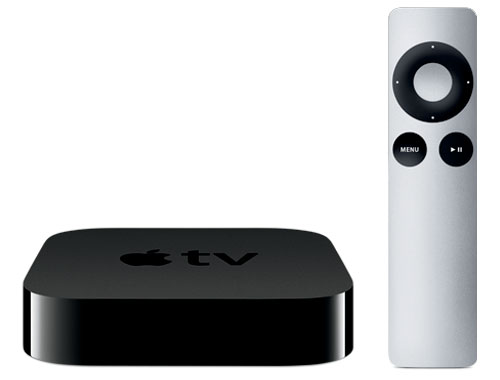
I’ve never actually reviewed the Apple TV on this blog. But I’ve had my current model for 5 years, so I think I can handle a “where it stands” review. Just know that when I first got my Apple TV it was the star of my entertainment center. It was my first streamer (followed by Roku, Chromecast, and Fire TV). It integrated well with my Macbook and my iPod Touch (these were pre-iPhone years). It had Netflix, which was all I cared about at the time, and I couldn’t say enough good things about it. Over the years Apple has added new “channels” including other streaming staples like Hulu, Crackle, and HBO Now. But after 5 years it is only one of several streamers that I have on my TV stand. And while I don’t use it exclusively any longer, it is still streaming throughout the week. So this old dog (5 years is ancient for tech like this) is still proving itself, but there is a new sheriff in town, and that’s the brand new 4th Generation Apple TV. So before we talk a bit about the difference, let’s first take a look at the 2nd Gen Apple TV, and see where it stands.
Apple TV – 2nd Generation (STREAMING MEDIA BOX)
Original Purchase Date: 10/01/2010
Time owned between Original Purchase and Where it Stands: 5 years, 45 days
Initial Impressions
In 2010 media streamers were not a large market. Even now, 5 years later, they aren’t a huge market, though many companies (amazon, roku, google, apple, etc) are working to change that situation. But back in 2010 “instant streaming” was as much a novelty as anything, as people still clung to their DVD players. The mass movement to digital media had only just begun. I’ve already spoken of my first impressions of the Apple TV, but understand this streamer was excellent in those early years. It had a simple interface (with only a few channels initially). And it saw cool updates every year, like Airplay where I could “cast” the content of my iPod/iPad/iPhone to the TV through the Apple TV. This was years before Google would introduce the same function with the Chromecast (another streamer I now own). So it was great. At the time it would have been my first recommendation, but five years is a long time.
The Tech in Action
Apple is a closed system. Always has been, always will be (to some degree at least). My first major beef with the Apple TV was that there was no way to play external media, like movies stored on an external hard drive. I was already into digital media when I got the Apple TV, and my tool of choice was the WDTV. This device allowed me to plug-in an external hard drive and watch my movies and shows via a simple interface on the screen. To be fair the only current media streamer that kind of does this is the Roku, and even that device is now a smooth experience. So the Apple TV has you locked into the channels they offered. I use Netflix and Hulu for the most part, and both work well on the Apple TV. I’ve found some cool education channels like the Smithsonian Channel and Discovery Channel that offer lots of free media. But, as it always seems to be with Apple, the free stuff will only get you so far. Most of the channels require some form of payment (one time or subscription). So don’t get too excited by the Disney Channel, HBO Now, or ESPN. You are going to pay for those channels to get much more than ads. Over the years the Apple TV has added channels and functionality without sacrificing speed and experience. That’s pretty unique, especially for Apple, which always is pushing you to their new devices by ditching support for older devices, at least in my opinion. So where exactly does this five year old streamer really stand?
Where it Stands
 The 2nd generation Apple TV was discontinued in 2013, so why are we having this conversation you might be asking. While the latest and greatest Apple TV is out now, you can still get the 3rd generation Apple TV and it will only run you $69. That’s better than the $100 I paid for my device in 2010. And it’s better than the entry-level price of $150 for the 32GB model of the 4th gen Apple TV. So I think these thoughts on the 2nd generation are relevant. So would I recommend it? As an entry-level media streamer the 3rd gen Apple TV is a bargain, since most similar devices will run you $100. But there are better “entry-level streamers” in the form of “streaming sticks”. Roku and Amazon both offer these for around $50. The Chomecast will only set you back $35. So from a price standpoint, I wouldn’t recommend the Apple TV. While it works just fine, it is expensive for something so old. It also works best for a household that already has other Apple devices. Where other streamers get along with everything better. If you have Amazon Prime, I’d point you to the Fire TV Streaming Stick. If you are brand new, with no affiliation, I’d point you to the Roku Streaming Stick. The Apple TV is good but no longer good enough.
So for now, the Apple TV (2nd and 3rd Generation) scores a CUP HALF EMPTY
First Impressions of Apple TV (4th Generation)
 Here is the short list of what the new Apple TV does that is different and exciting. First it’s a whole new interface, called TVOS. The iPad has truly come to the TV screen. And app developers will reap the benefits in the same way they’ve been cashing checks with their iOS apps for years. By allowing 3rd party apps on the Apple TV all sorts of options open. The long-awaited PLEX app is already available. This app allows you to stream media from your computer, or server (if you are a geek like me). This is similar to what the Apple TV has done for years with Airplay, but now any device running PLEX can take advantage of it. And thus begins the rise of digital libraries!!
The new Apple TV features an updated remote control with a trackpad vs the direction pad of the old device. It’s still small, so you’ll be checking the couch cushions from time to time, I’d imagine. The remote also takes a card out of the Fire TV deck with voice control. Of course Siri is front and center, pulling up shows and films based on search criteria. The really cool thing that differentiates the Apple TV from all other streamers in this regards is what I’d call “layered search”. You can search for comedies. Then filter to a specific star, and the search will modify accordingly. I haven’t tried this feature in person, but I can imagine the possibilities, having done voice search with my Fire TV for over a year.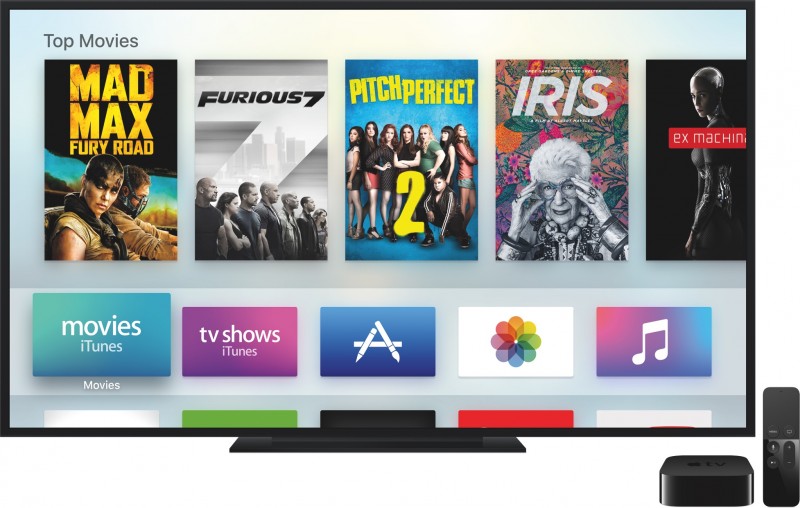
Finally, gaming. The Apple TV has long been an untapped resource for gaming revenue. The idea that you could throw iOS games to the screen was introduced with Airplay, but it was always clunky. Now Apple is taking on the Fire TV specifically, which also has a gaming element (and associated controller). Only time (and 3rd party developers) will tell if gaming will find new life on the Apple TV, but it seems like an easy bet to make.
Apple likes to “redefine” genres. They did it with the smartphone (iPhone), they did it with the tablet PC (iPad), they are trying to do it with the smartwatch (Apple Watch). And now they are truly going after media streamers. Roku, FireTV, Chomecast, and a few others have never faced competition like what it coming. Will the Apple TV prove to be the best? Only time will tell. But things look promising. Stay tuned.
Charitech – Where Charity Meets Technology

Last August I had a moment. One of those moments that forever changes your trajectory. That moment came from my experience with a story about a displaced Palestinian man, who fled Syria to Lebenon with his two kids. He made a living selling pens on the street. The amazing element is that a picture of the man spawned a kickstarter style campaign, raising over $250K for him and his family! The story of such giving floored me. And looking at myself in the mirror, I knew I that I wasn’t doing enough. Why? Because I wasn’t DOING ANYTHING! I talk a good talk, but that was it. So at that moment I decided to change. I launched a new blog (www.developingcharity.net). And I started an effort I called “Project 520” where I would donate $10 to a different charity every week of the next year ($10 X 52 weeks = $520). And I’m just wrapping up my 10th week. And it’s been great so far. But I wanted to find a way to connect my love of technology with my newfound charitable efforts. And that’s what “Charitech” is all about.
Charitech – How technology tools can enhance the process of personal philanthropy (in big and little ways)
I’ve long held that technology needs to enhance our lives. That’s the essential element. I have found tech tools that enhance my experiences with charity, and I plan to highlight a couple of them in “Apps of Note” in the coming weeks and months. But let me introduce you to one tool that is well worth your time. It is called “Charity Navigator” and it is availalbe as an app (iOS and Android) and a website. If you are a skeptic when it comes to charities. If you wonder, “where does my donation actually go?” or “how much of my donation goes to administration and fundraising?” This app will help you. This app can give you a wealth of information in an easy to digest package. So let’s break it down with a simple “App of Note” review.
Charity Navigator

In the simplest terms, Charity Navigator is a repository of sorts, gathering up data on a vast array of charities from around the country and around the globe. With a simple “search” function, you can lock in on a specific charity and look at the basic metrics of their philanthropic efforts. A quick search for one of my favorite charities, “water.org”, shows a 4 star rating, and a score of 95.38 out of 100. These numbers are arrived at through an analysis of both the financial responsiblity of the charity, as well as accountability and transparency. The main page of the search shows the address and phone number of the charity, and lists the board leadership, CEO, and mission statement. All important information to have public, ensuring that your chosen charity is on the up and up.
A slide to the right reveals the next feature of the app, “metrics”. Two pie charts are shown, the first a breakdown of where contributions come from (contributions, gifts, grants = good), and the second charts shows how the expenses break down (the larger percentage going to “program” the better). For my chosen charity, 99.2% of their funds come from “contributions, gifts, and grants” and 73.4% of their expenses go to program. That’s not too shabby. Though I have seen charities with over 90% going to program. It’s just important to remember that the
larger the charity is, the more money is probably being donated, and there will be corresponding overhead, in terms of the people needed to manage those funds efficiently. Which is what leads to the final section.
![IMG_0548[3]](https://twolumpsoftech.com/wp-content/uploads/2015/11/img_05483.png)
![IMG_0549[1]](https://twolumpsoftech.com/wp-content/uploads/2015/11/img_05491.png)
 Sliding the screen down from the two pie charts you are greeted with a vast array of data. Revenue vs Expenses in bar chart. Full breakdown of expenses. A checklist of accountability and transparency including things like “audited by independant accountant”, “independant voting board members”, and “CEO listed with salary”. The more check marks, the stronger the charity. Finally you’ll come to the money. Actual totals of revenue and expenses. Here’s where you find out if a large adminstration cost is justified. Water.org has annual contributions of over 15 million dollars. So I can understand why they would need people to manage those funds, and ensure proper distribution to the people who need the services the charity provides (in this case, clean water to third world countries mostly).
The Whole Cup Summed Up
Charity Navigator is a tool in the arsenal of anyone interested in becoming engaged in philanthropy. I agree when the skeptics say you need to know where your money is actually going. Where I break with the skeptics is the next step. Many people use the bad charities as an excuse to do nothing. If there are charities mis-using donations then all charities are bad. I guess that’s the logic. But with tools like Charity Navigator, we don’t have that excuse. This tool helps anyone become educated in intelligent giving. You can know with a reasonable amount of certainty that you are indeed giving to a good cause by using these tools. And I highly recommend checking the app out.
Charitech – Where Charity meets Technology
 This is just the first tool I’m sharing on Two Lumps of Tech. I have others. I have a whole folder on my iPad and iPhone filled with such tools. Giving isn’t hard, once you do it. It’s that first step. That first buck or $10 in my case. And once you have your tools straight, once you have your plan of attack, then it’s easy. And it feels good to do it. Because now your technology is not only helping you, it is helping others. And that brings our gadgets to a whole new level.
Remember – Something is Better than Nothing.
#practicecharity
Upgrade Time!! Two Lumps of Smartphone Advice

We are officially in upgrade season! I am well aware of the daunting task of sorting through all of the different options for smartphones. There are just so many players in the game it can get overwhelming quickly.
What follows is a simple breakdown of my TOP FIVE favorites phones. I’m including a few links to other reviews for each phone, to give you a well-rounded opinion of each device. To keep things simple here, I’m focusing on a few key features of each phone, which I’ve found to be important to the majority of consumers, from the tech-savvy to the casual user. So here we go!
Disclaimer #1: This list is not in order of preference. I’m not awarding medals here, just giving a shorter list than you’ll find with the carriers.
Disclaimer #2: I’m sticking strictly with the high-end smartphones. If you are upgrading, you can usually get a good deal regarding up-front cost, and the monthly cost will be consistent to what you’re used to. As a general rule, upgrading at least every two years is the best way to make sure you have a smooth experience with your phone. Things just change too quickly! If you want to stick with a Mid-Tier phone, definitely try to get your hands on the MOTO G, which is an amazing phone for $180!
On with the list:
Moto X (2nd or 3rd generation)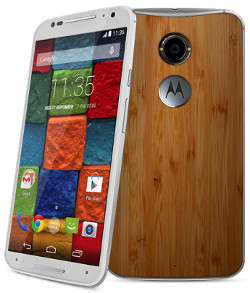
Motorola has been making great phones for the past three years, with the “Moto X” line. These phones are defined by high
quality build, simple operating system, and small physical size (when compared to the actual screen size). The 3rd Gen Moto X was just announced in August. This phone is HUGE. 5.7 inches makes it a “phablet” and those who want the smaller handset should steer clear. The 2nd generation is still a very good phone, and smaller, so you’ve got options. The 3rd Gen Moto X did vastly improve the camera though, so if that’s important, bear it in mind (though it still is not as good as Samsung and iPhone).
Moto X (3rd Gen) Review – Mobile Tech
Moto X (2nd Gen) Review – Engadget
iPhone 6S/iPhone 6S Plus
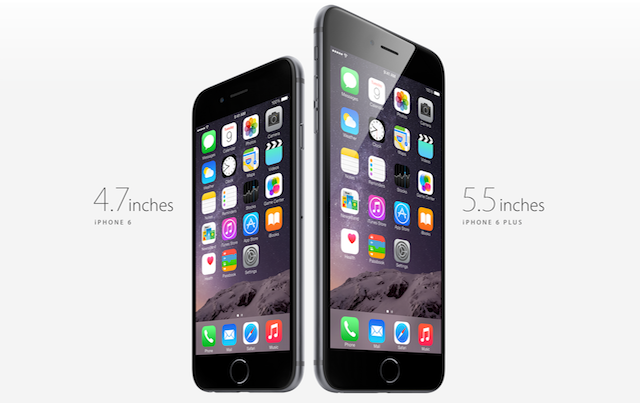
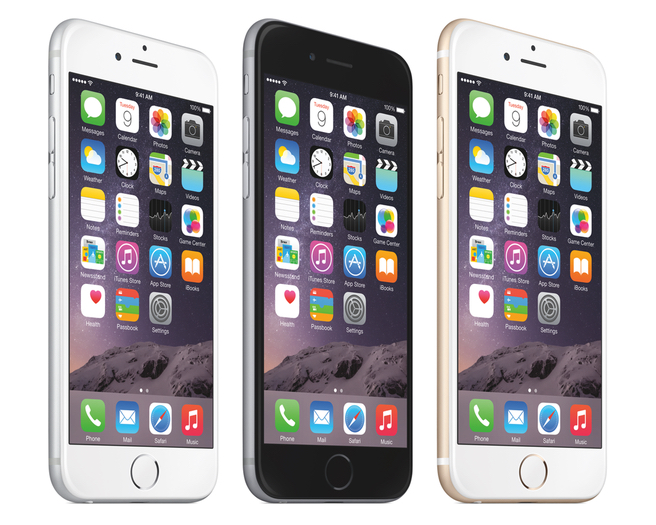 I had the iPhone 6 for a while, and I thought it was a perfect phone. Great size (4.7 inch screen). Great camera. Decent battery life. If you like Apple, the iPhone 6 is a great choice. I am currently using an iPhone 6 Plus, but that 5.5 inch screen is just too big for me! Apple announced their new iPhones on September 9th. As with all “S” models, the form factor has not changed. This phone looks the same as the previous models. They have vastly improved the camera with 12MP, and optical image stabilization (helps shaky hands take clear pics). They’ve added a 5MP front camera, and are using the screen itself to make a “flash” for selfies. the screen itself has been improved with the use of “3D Touch” which makes it so you can do different things when you press the screen versus just tap the screen (this tech is based on the Apple Watch screen). Overall it’s a good “off-year” for the iPhone, but if you want major changes, wait another year for iPhone 7.
iPhone 6S Plus Review – Tech Radar
Samsung Galaxy S6/Galaxy S6 Edge/Galaxy S6 Edge Plus
This has been my primary phone for the past six months. Samsung made a beautiful phone with the Galaxy S6. Metal and glass construction, it feels incredibly similar to the iPhone (almost too similar). With a 5.1 screen, it’s big but not too big. The operating system is intuitive, and camera is great. I particularly like the “wide-screen selfie” feature and that you can snap a photo by tapping the flash on the back of the phone (less cumbersome than finding the button on the screen. The Samsung Galaxy S6 also offers turbo charge (15min gets you 40% battery) and wireless charging, which is pretty cool. If you aren’t into Apple, the Galaxy S6 is definitely the way to go at the moment.
If you want something different, Samsung is also offering the Galaxy S6 Edge, which has curved edges. My experience with that device proved to me that the edges look cool but offer little in enhancement, and only make it harder to hold. If you want something really big, the Samsung Galaxy S6 Edge PLUS just release, with a 5.5 screen size. Again it looks really cool, but for me is a pain to use, especially with the huge size.
Samsung Galaxy S6 Review – CNET
Samsung Galaxy S6 Edge Review – Digital Trends
Samsung Galaxy S6 Edge + Review – Phandroid
LG G4
 I hated the LG G3, so I wasn’t even going to include it, but a buddy let me play around with the G4 the other week, and my opinion suddenly changed. The LG G4 is a very different type of phone. It features a 5.5 inch screen, but the phone size is pretty small, all things considered. LG definitely took a card out of Motorola’s deck, in terms of making sure big screens doesn’t mean gigantic phones. The LG G4 features a leather back, in varying textures and colors. It feels great! The other odd thing about LG is that they moved the power and volume buttons to the back of the phone. It seems like an odd choice, but I am starting to see the logic of it, and it makes those edges super thin. All they need is a fingerprint scanner on the back, but that’s not here yet (maybe G5 next year!)
HTC One (M9) and (M8)
Finally we come to HTC. I used the HTC One (M8) for six months last year (that’s pretty much the longest I use a device). I loved the feel of the phone (all metal). The screen was brilliantly bright, and the device was lightning fast. But my big beef was related to the extra space used for the company logo on the front (my opinions can be seen here). You’d think they’d finally fix that with the M9, but that was not the case.
The HTC One (M9) is a minor improvement over the previous model. The camera was switched from 4 ultra pixels (which no one ever understood, including me), to 16 mega pixels. But lots of pixels doesn’t mean a better camera, and HTC has lost it’s way a bit here. Still, when compared to ANY mid-tier smartphone the HTC One (M9) and (M8) are heads are shoulders above in terms of picture quality. So as I knock on the camera, it still has a place among these top-tier phones. The HTC One (M9) also updated their operating system to adapt based on your current location. This functionality can be achieved through “launcher applications” like “Everything Me“, but HTC has it built it, which is actually a pretty cool thing. I imagine other smartphone makers will be looking at options like this in future models.
HTC One (M8) Review – Engadget
 A Note on Phablets
Oh those giant smartphones!! The line between phone and phablet is roughly 5.5 inches. You have a few options. We’ve already talked about the iPhone 6S Plus, Galaxy S6 Edge Plus, and LG G4. Another popular phablet worth considering, if you’re in the market for a big phone is the recently release Galaxy Note 5. They took the materials that built the Galaxy S6 line of phones (metal and glass) and blasted it to 5.7 inches. As always with the Note line, there is a stylus. This time around they have focused as much on the stylus as the phone, and my experience with it was great. In my opinion, any phone over 5.5 inches should have a stylus, so Samsung is leading the pack there.
Samsung Galaxy Note 5 Review – The Verge
The Whole Cup Summed Up
If you’re in the market for a new smartphone, you’ve got tons of options. Hopefully this list is helpful in sorting through what makes these high-tier models different from each other. In the end, there’s no right answer for everyone. Some live and die for iPhone; while others believe Android is the only way to go. Some say 5.5 inch Phablets are ridiculously large, but at the same time, I know many people who wouldn’t want any other size. So head to your nearest carrier and get these phones in your hands before you drop the coin, and I’m sure you’ll find something that works great for you!
Happy Smartphone Shopping!

Where It Stands – Amazon Fire TV
A New Category of Review!!
 A year ago I introduced a category to my fledgling blog called “First Impressions”. The purpose of those posts was to do a quick review of the features of a new device/service/app that I’d only used for a week or so. The first device I did “First Impressions” of was the Amazon Fire TV. After a year of blogging it’s time for a new category that I’m calling “Where It Stands”.
So many technology reviews are written in the whirlwind of a product’s release. And judgement is often passed based on a brief encounter with the technology (be it a phone, tablet, streaming box, application, or any other tech that is targeted for the masses). If you google reviews for the product, the vast majority of the time you will find reviews that are old. Reviews that were written within a week of the release date (much like my First Impressions reviews). This new category is intended to re-visit something I reviewed early on, in order to see “where it stands” after 6-12 months of use. Often tech that looks bad initially improves through software updates. Sometime tech that looks great at launch doesn’t hold up over time. I couldn’t think of a better product to use for my first “where it stands” review than the Amazon Fire TV. So let’s get to it.
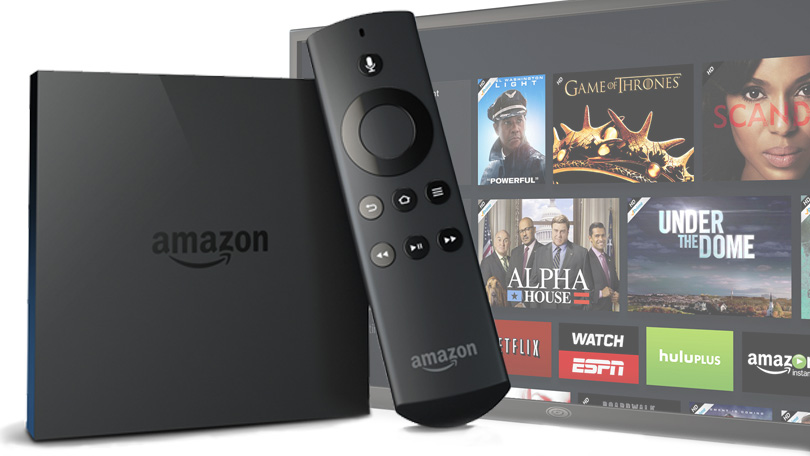
AMAZON FIRE TV (STREAMING MEDIA BOX)
Original Review Date: 8/15/14
Time used between Original Review and Where it Stands: 1 year, 22 days
Initial Impressions
Right from the beginning I loved the Fire TV. I found the user interface very intuitive. The voice command to search for movies or actors worked smoothly. Gaming proved to be a great fit for the streamer. Partnered with a USB Xbox controller, I was quickly playing racing games, and even Minecraft Pocket Edition on the big screen. The Fire TV quickly became my go-to streamer, in a house full of many other options (Apple TV, Roku, Chromecast).
The device certainly steers users to amazon content. Voice search only searches amazon’s offerings. Prime videos are not separated as clearly as they could be, so you have to pay close attention to that little “prime” ribbon on the free content (assuming you are a Prime Member). But amazon is a company selling content, and so I made my peace with that element, knowing it would never be as simple to view any video for free the way it is on Netflix. Thankfully, Netflix is an app on the Fire TV, so I’m covered!
The Tech in Action
 My primary use for the Fire TV is Netflix and Hulu. The interface for both apps is great. The screens are much easier to navigate through than the current Apple TV. For the first few months I also spent much of my time playing games. I sang the praises of “Asphalt 8” in my first impressions review. That game is great, but you quickly run out of space with internal memory, so having an extra flash drive for additional storage is a must (there’s a single USB for that purpose). I found a fun social game called “Fribbage”. This game uses the Fire TV as the “game board” but it also uses smartphones for each participant. I used both Android and Apple phones with no issue. The game provides a phrase with a blank space, and then everyone types something to fill it on their smartphones. The game mixes up those with the true answer, and everyone votes, again using the smartphone to input your choice. It was a very fun game, and while we didn’t play it a lot, that has more to do with how seldom we entertain than the gameplay value. So gaming remains solid on the Fire TV, from Minecraft to Minions Rush, and more complicated games like Leo’s Challenge and Mickey’s Castle of Illusion. Grab a Bluetooth controller or plug a USB controller in and you’re good to go!
 Currently one of the main apps we use of the Fire TV is HBO Now, which just became available after a period of
exclusivity on the Apple TV. We used the Apple TV version since it released and I am so happy to have the improved interface of the Fire TV. Hands down, amazon has better screens to navigate.
Where it Stands
As of today, Amazon Fire TV is the champion of the streaming boxes, in my opinion. Roku may have more channels, but amazon has a slicker experience. Apple TV may have more clout, but currently that box is several years old. Apple plans to announce a new Apple TV September 9th, so we’ll see what changes come to that device. Most guesses are that the new Apple TV will support apps, gaming, and voice search. All things that the Amazon Fire TV does already.
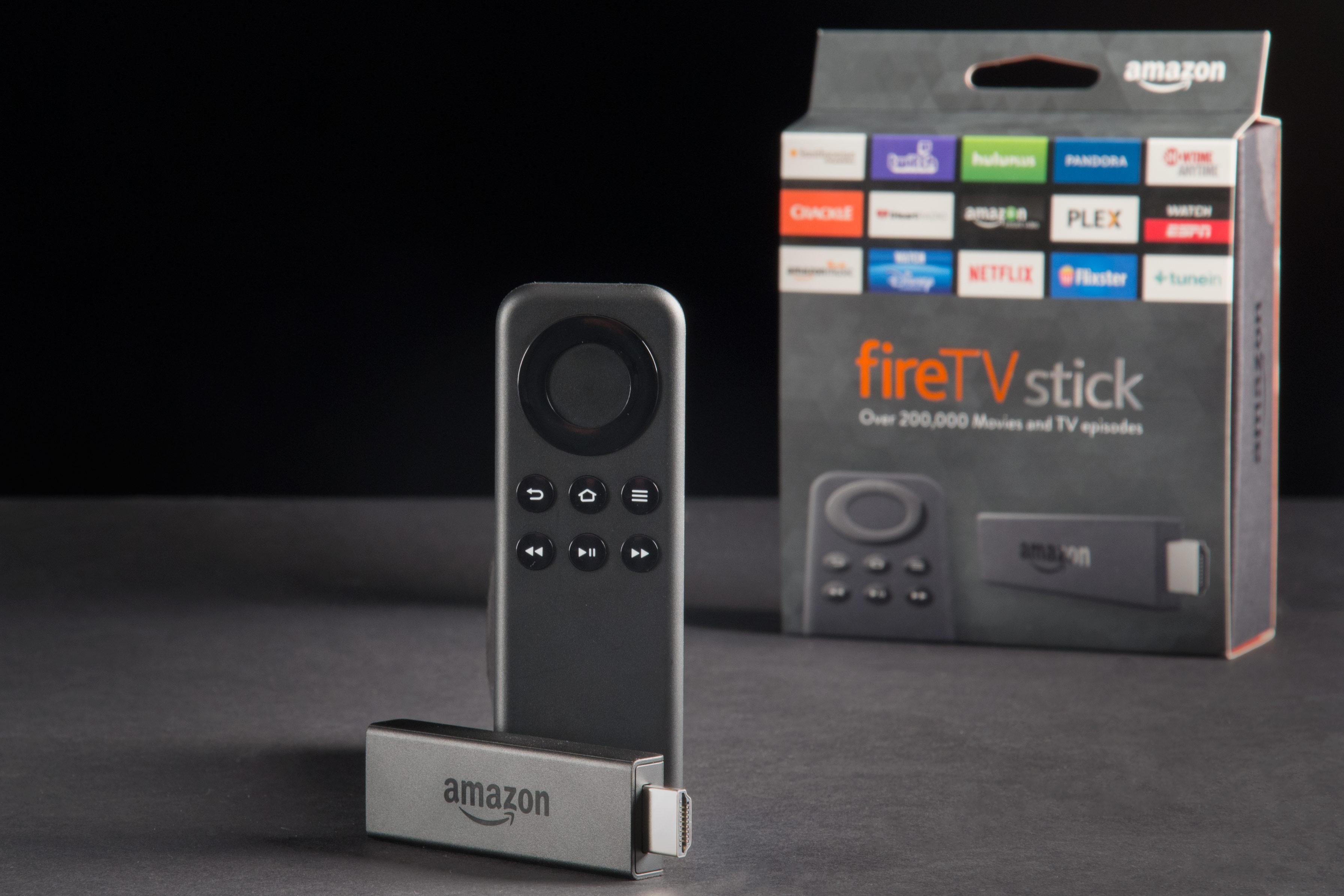 The Fire TV was refreshed via software update in April 2015, offering enhanced features like Bluetooth headphone support (keep Game of Thrones from your children’s ears), enhanced USB support, and improvements to WIFI connections. There are no rumors of a new product launching soon, but currently the device is out of stock with amazon. The company states that it is due to “high demand” for the streamer, but often supply lines dry up just before a new product launch. So stay tuned for news of a new Fire TV; I’ll be all over that! If gaming isn’t your cup of tea, the Amazon Fire TV Stick is currently available for $39. That’s $60 less than the larger streaming box, and offers everything except the gaming aspect. So that’s certainly a good option.
Chord cutters are on the rise. HBO and Showtime now offer monthly subscriptions for apps on streamers. It’s only a matter of time before media streamers truly go mainstream. And the Amazon Fire TV is a great choice, if you’re considering taking the leap.
For now, the Fire TV scores a CUP HALF FULL.


Have a Year of T(ech) – One Year Anniversary

 This week a milestone was achieved. The blog “Have a Cup of T(ech)” reached the one year mark. That’s no small feat when you’re a one man shop, in a part-time capacity. I’ve had a great year checking out different technology for casual consumers. Over the year we’ve looked at Apple and Android smartphones and tablets. We went on the road to Walt Disney World, exploring the cool apps that make navigating the massive parks not only easy but fun! Reviews of “apps of note” from everything from pocket games like Scibblenauts to Smart News Readers like the Yahoo News Digest.
 We reviewed our first “smart home” device with the Echo Smartspeaker, and played around with Virtual Reality with Gear VR. We’ve done our best to offer a wide variety of reviews, including the new Kindle Voyage and Beats Studio headphones. Mid-year we had some fun with a review of the “Funny or Die News” application, and more recently we reviewed the HBO Now service (coming soon to Android devices). One particular post had me trashing
the Winbook tablet computer, which garnered the most hits in the year (and I don’t take anything back).
 This past year has seen 44 blog posts, which have been viewed over 5000 times in over 150 countries! I’m so glad that this little operation has been able to reach out so far! And we have no intention of stopping. The first year focused primarily on the blog itself and our twitter handle (@twolumpsoftech). A Flipboard magazine was introduced mid-year, offering another way to keep track of the
consumer tech that is making news. But a few new things are planned for the coming year.
 Coming in Year Two!!
Two Lumps of Tech now has an Instagram account. The focus of that site is to show off new technology IN ACTION. I’m not sure what direction that will take, but I’m excited about the chance to show how the tech works, in addition to continuing to write reviews. A new category is coming as well. “Where It Stands” will be revisits to products that have been reviewed previously. Too often reviews on the internet are published right when a new product comes out. Sometimes  products that look great initially turn into duds, while at the same time, other products that have a rough launch, find new life in software updates. I want to return to products after initial reviews to share how the tech is holding up, and whether it’s still worth consumer’s consideration. Look for a “Where It Stands” review of the Amazon Fire TV in the coming weeks!
Finally we’ll be adding guest writers in the coming year. I hope to add some new perspectives and get writers with different areas of  interest to give an even broader set of reviews (I can’t keep track of everything that’s going on in tech!). The focus will remain locked on casual consumers though, so don’t worry about this blog becoming another site written for technology geeks. This blog is for everyone. Because technology has the capacity to enhance your life. I believed that when this journey started a year ago, and that thought remains the same. So stay tuned for more First Impressions, Reviews (cup half full/cup half empty), Apps of Note, Tech News, and the occasional HaikuReview.
Thank you to those who have been following the site this past year. I sincerely hope you have found things that were interesting,  informative, and even maybe a little humorous at times. A special thanks to friends and family for providing editing and feedback over the course of the year.
On to year number two!!
Cheers — BC Gordon – Two Lumps of Tech

Update: Gear VR for Galaxy S6 — HEAT PROBLEMS!!!
A Note about Heating Issues:
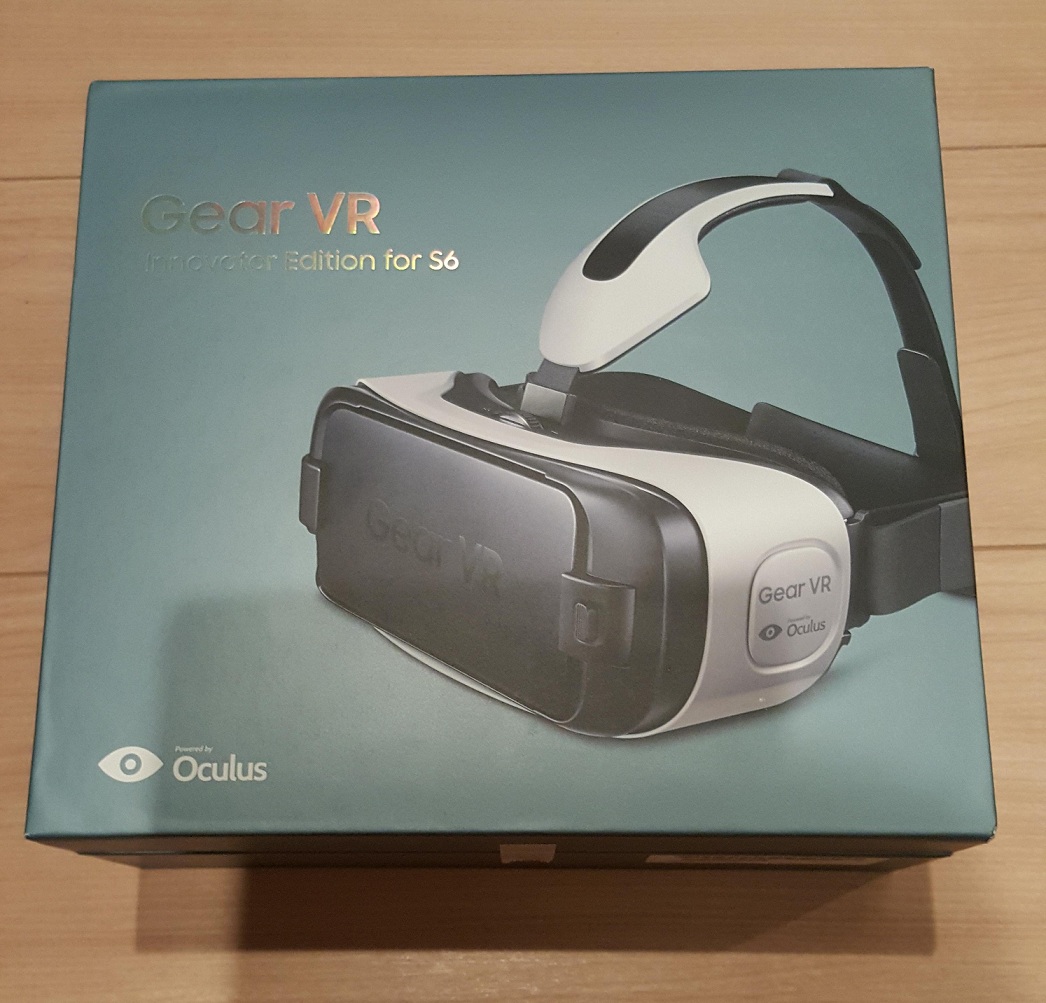
I published a blog last week reviewing the Gear VR for Galaxy S6. I have since returned the device. Bummer! Right?!? Here’s the reason that my time with the Gear VR was so short. It simply heats up the smartphone too quickly. The device has a safety feature that stops allowing VR use when the phone is too hot. I noticed it right away but I thought I’d solved the issue by running a fan directly in the face of the person wearing the headset. But then one weekend nothing seemed to help with the rapid heat issue. I was getting five minutes of use and then heat warnings. I was cooling the phone down with ice packs and trying again, and BOOM, the phone was 100 degrees in five minutes. And that simply cuts the “fun factor” down to zero for me. I see great potential. I don’t take anything back that I’ve written thus far about how amazing this technology is. But part of what is amazing is tied to its weakness. Oculus Rift uses a full computer to power it and manage the software. The Gear VR is trying to do all of that same work with a small smartphone operating system (without an internal fan!). So the tech has some work to do before it’s consumer ready. I’m confident they’ll solve that puzzle, it’s just not there yet. So save your cash for now.
First Impressions – Gear VR for the S6

I’ve been dreaming about virtual reality for years. So long, in fact, that I totally forgot about it. I used to dream of strapping on the headset and disappearing into a virtual world of dinosaurs and roller coasters. Unfortunately, early attempts at virtual reality (VR) were always expensive and clunky. Even the king of VR these days, Oculus Rift, is still tethered to a computer in order to use it. The idea of VR anywhere seemed like a dream until this past year when Samsung got into the game.
Samsung released the Gear VR for the Note 4 in December 2014. Samsung built the hardware and Oculus providing the software support. It was seen as a novelty, mainly because the Galaxy Note series has never been one of Samsung’s mass market devices. It’s a top seller, for sure, but it’s nothing when compared to the Galaxy S line of smartphones. The Gear VR did something entirely new though. It took away the tether. The hardware of the googles used the smartphone as the screen and the operating system. VR was officially “anywhere” you wanted to use it!
Then in April Samsung made another strange move. They released another Gear VR. This one was tailored for the popular Samsung Galaxy S6 and S6 Edge. Along with supporting the new smartphone, the updated Gear VR resolved several issues that early adopters complained about. The focus dial has a wider range, the head straps are easier to adjust and wear for extended periods, and the overall device is lighter. Shortly after the product’s release the next major step forward occurred when the Gear VR launched a Storefront, partnering with Oculus itself. Much like when the iPhone finally got an App Store, the Gear VR is now prime for developers to actually make money with the device! So it is only the beginning. I’ve had the Gear VR for just over a week. I’ve strapped it on every head I’ve encountered over that period, and I’ve been through every feature myself. These are my first impressions.
The Hardware
First off the headset of the Gear VR is solid. It finds that nice balance between being light but  not feeling cheap. When I put it on someones head I set the straps at their widest and then assist tightening the two straps on the side and the one over the head. It’s all velcro, and super simple. Assistance isn’t really needed, but I’m providing a service here! : )
The Gear VR has a physical “back button”, which is mainly used when you want out of a game and need a “panic button” of sorts. There are also physical volume buttons on the front of the device. The Gear VR doesn’t provide it’s own sound output, it’s just your phone. But you can plug in headphones and control the volume with those physical buttons, which is pretty sweet. The rest of the navigation is done via a trackpad. Think of a tiny laptop mousepad. Swipe up/down and left/right to move through your options. Give the trackpad a tap to select. This feature is placed on the right hand side of the Gear VR and is very easy to use.
The last physical feature of the Gear VR is a focus scroll, located at the center of the headset. My understanding is they have improved the range of focus to allow people who normally use glasses to be able to use the Gear VR without them! I have tested this with several people, including myself, and the visually challenged are no longer out of the game!
Overall, the hardware is very good. The range of vision is certainly somewhat limited being you are, in fact, looking at a 5.1 inch smartphone screen. The dreaded “screen door effect” is present. This basically means you feel like you are looking through something into another world, but this feels more like a feature when you do diving games (the Gear VR is your scuba mask!) At $200 the hardware justifies the price. But what exactly does the Gear VR actually do? Here we go.
It Offers Experiences
The purpose of any virtual reality device is to offer a window into a new world. An opportunity to stand in a city on the other side of the planet. To swim with dolphins and sharks. Heck, to stare face to face into the eyes of a dinosaur! The Gear VR offers all of these experiences, and more. Through Oculus 360 photos, you can stand in London, Paris, or a wide variety of locations around the globe. It pretty spectacular to stand in the middle of Tower Bridge in London, as it literally “towers” over your head!
The device offers diving options, dinosaurs, 360 videos where you fly over New York City and Venice. One of the coolest features I’ve encountered is “Battle for Avengers Tower” which is a 3D experience placing the viewer smack dab in the middle of a massive Avengers fight! It’s pretty surreal to see Thor’s hammer spinning directly in front of your face.
 The last “experience” I’ll mention is definitely something worth checking out. It’s the Oculus Cinema. The cinema is just that, a movie theater where you can watch any MP4 video file you have stored on your phone. Theater options include a small home theater (with 100 inch screen), a massive movie theater with a few hundred empty chairs around you, the “Ant Theater” which displays your videos on a discarded iPhone lying on it’s side under a mushroom, and finally “Moon Theater” where you are watching on a screen mounted on the moon. It’s a pretty cool way to watch videos, and definitely an experience not to miss with the Gear VR.
It Offers Games
I have not taken a deep dive into gaming, but the few games I have played have been very fun. The first game I played was called “Rocket Toss”. This is a ring toss game, but your goal is to put your ring around a rocket, which will blast off and explode above your head when you succeed. The game is played in 3D, which is very cool. You simply aim with your head and toss by flicking the touchpad on the right side of the headset. It is very addictive!
 Another fun game that you can do without a physical controller quite easily is “Temple Run”. The game dynamics are exactly the same as the popular smartphone application, but now you are IN THE WORLD. You can look over your shoulder and see the monster bearing down on you. This was the first game that really did a number on my balance. You are racing up and down hills, using the trackpad mechanics to turn left and right, and to jump or duck. It’s a great way to experience the wonder of VR gaming. But when you add a Bluetooth controller, things get even more interesting.
I got my Bluetooth controller for about $20 online. I started with  “Temple Run” and the gameplay was much easier now that I had physical button to jump/duck, and a thumbpad to turn. I lasted much longer in the game with the controller. I also purchased a racing game called “VR Kart”. This is very “MarioKart” but not nearly as fast. Still it’s in 3D, so you can literally look down at your hands in the VR and see your fingers gripping the steering wheel! That’s pretty cool. Finally I played a game that is heavily promoted in the store, called “HeroBound”. Think “Legend of Zelda” or “Fable”. Instead of first person view though, you are hovering over the game, controlling the hero through battles and world exploration. I didn’t play it much, but what I saw was very impressive. And it will only get better with enhanced graphics. So gaming was a good experience on the Gear VR, but the greatest thing about this device is that the target audience is vast.
It Offers Something For Everyone
 There are several nature videos and experiences from swimming with dolphins (though they are CGI versus real animals) and being in a shark cage while a Great White stalks you (again, CGI). There are many applications that offer a wide variety of things that will interest lots of people. There is a helicopter ride, but the chopper is doing barrel rolls. I don’t ever want to do that for real myself, but it was a great thing to experience from the Virtual passenger seat. Saturday Night Live’s 40th anniversary show had a 360 camera set up during the taping of “Celebrity Jeopardy”. So you can be a “fly on the wall” watching the full video show, but now you can look around the studio and see the audience (there are movie stars in there if you look close enough). That’s definitely a cool experience. I’ve yet to a find a person who didn’t find the technology fun to check out. Not everyone wants to rush out and buy one, but it’s hard to deny that the experience of virtual reality is pretty amazing.
The Whole Cup Summed Up
 The Gear VR is an amazing step forward for Virtual Reality. It’s making this fledgling technology mobile, and it simply has to do that to really catch on with average consumers. So many people are ditching desktops and even laptop computers in favor of tablets, that an emerging technology can’t be tied to an older hardware system. And the Gear VR is proving that such technology can be “unplugged”. There’s still some work to do (I’m noticing some issues with the phone heating up quickly), but this device is sold as a “innovator version” which means it’s meant for developers and early adopter tech geeks like me.
If you know someone with one of these, try and get some time with it. Check out the different experiences, and wonder at how a tiny little smartphone is running such complicated software. It’s a wonder. And within a year or so, it’ll finally be ready for everyone. Who knows what the future might bring!!


Two Lumps on the Road – the Testing the Apple Watch
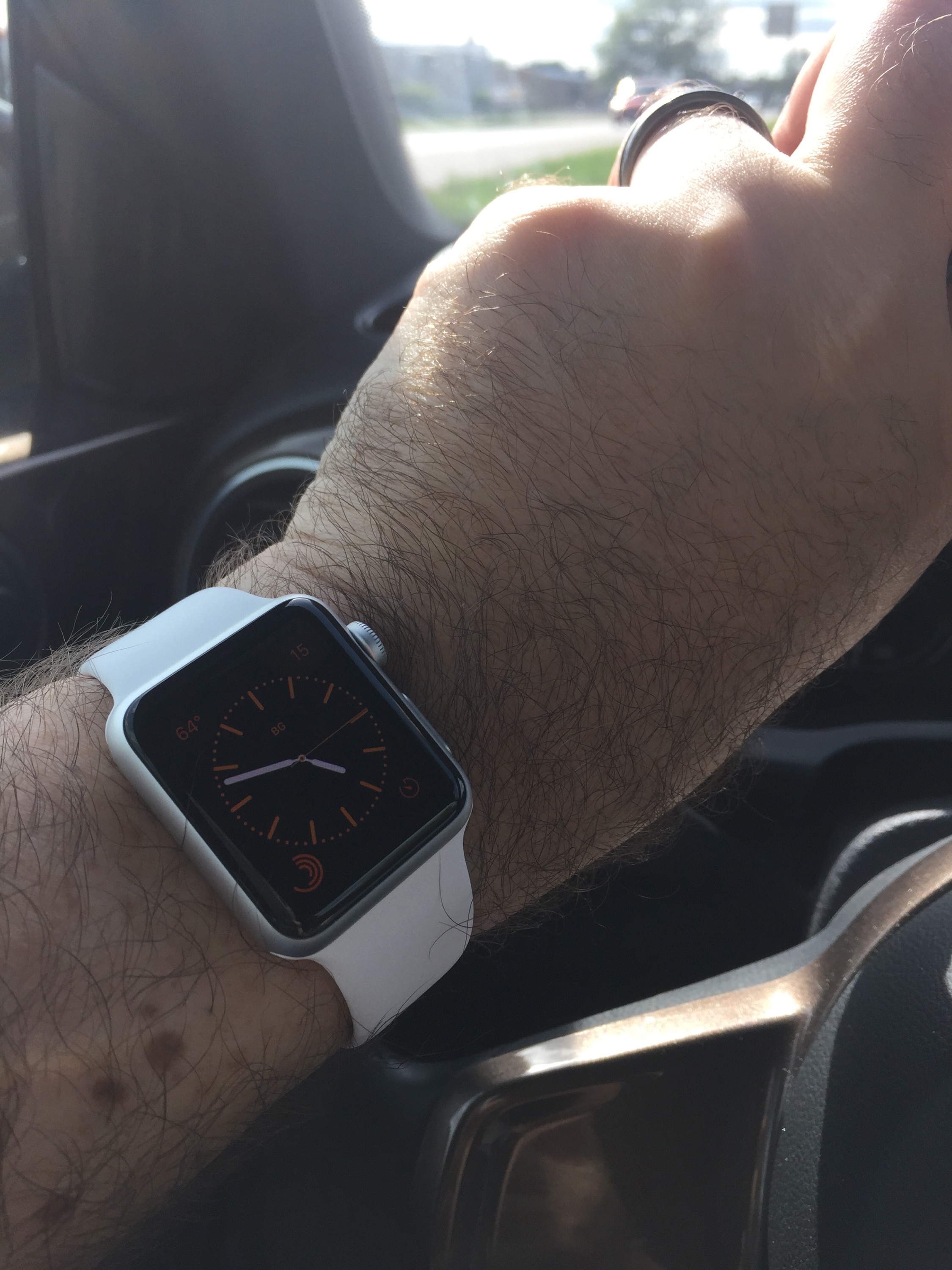 Recently I was handed an Apple Watch to test out. Coincidentally I was heading out of town for a family gathering near Fargo, North Dakota. So I strapped on the watch, synced my iPhone 6, added a bunch of apps, and hit the road. I am currently camped out at one of the rare Dunn Brothers Coffeeshops in Fargo, running through everything the watch can do (or claims that it can at least).
I love wrist tech (my Pebble Time is coming soon!!) but I am skeptical about the Apple Watch. I think it wants to do more than it should. But now my skepticism will be put to the test. Look for a more detailed CONSUMER FOCUSED review later in the week, once I’ve used the watch for a few more days. So far I like it. Not enough to buy one for myself, but enough to be optimistic. Still, I like to be right about my thoughts on tech ; ). So the gloves are coming off!
Stay tuned for more.

App of Note – Funny or Die News Flash

UPDATE: August 2016. This app is no longer being offered. But read on and remember a cool concept, and hope for something similar to return to the news landscape. We can all use a little humor in our daily news!
I’ll admit it. I’m a bit of a news junkie. I do my best to stick to tech news and the major headlines, and I try to stay away from the comment sections. I think it’s good to be informed, but in a world where endless news articles are just a click away, some balance is required to not find yourself immersed by the torrent. Enter, smart news applications.
Smart News apps are designed to give you a quick burst of news. Not too much, but not too little. I’ve already reviewed one of my favorites, Yahoo News Digest, in a previous “App of Note”. Today I want to introduce you to another. And I’ll get this out of the way first, it is currently iOS only. So if you don’t have an iPhone or iPad, you are out of luck for the moment. But do read on, for this sweet little news app will certainly come to Android in the future, and if you’ve got a good sense of humor, and a tolerance for minor vulgarity, this news app will keep you informed while it’s making you laugh, and it’s called “Funny or Die News Flash”.
What Makes a Good Smart news App?
 In my opinion, every Smartnews app should meet the following criteria:
1. Scheduled Delivery– Smartnews should come at specific times during the day, versus constantly being updated. That way you can read all the content, and you know you’re done until the next delivery. Just like the good ole newspaper!
2. Short Informative Articles – Smartnews should be a quick read. I’m talking about the walk from the car to the office, or an elevator ride. You should barely need to scroll down through the article, because your goal is to know the top stories and that’s it. There are plenty of apps offering a more lengthy take on the news of the day (see #3)
3. Links, Links, and more Links – While a smartnews app is designed to be a short read it should offer links to get to longer articles, or even related articles from within the app.
4. Social Element – Smartnews should at the very least offer buttons for Facebook, Twitter, Text, and Email. That way if you read an article you want to share with others, it’s just a click to send it on it’s way.
5. Intelligent Swiping – This one might just be me, but every smartnews app I’ve used makes use of up/down and left/right  swiping in intuitive ways. That’s the key to a quick read. Read what is on the screen, swipe left, read the next story, swipe left, and so on. You want to send to Facebook, swipe up, click the icon, and off it goes. If a smartnews app is clunky, it is no longer serving it’s purpose.
So let’s see how the “Funny or Die News Flash” application stacks up to my criteria.
It Offers a Good News Spectrum
The app takes brevity to a whole new level. Each “story” is designed with two sections. The first part is the informative news piece. The second part is the joke related to the first part. It can literally be two sentances. That certainly puts the “flash” in news flash. But while the articles are incredibly short, they are also very diverse. US, International, Business, Entertainment, Sports, Tech. They don’t all show up each day, but I’ve seen them all appear from time to time. I checked the articles showing in the app against some of my other favorite smartnews apps, and I found they all had similar stories, because they all cover the most popular things in the media at the time. So for “short informative articles” Funny or Die News Flash nails it.
It Offers Social Element and Links
 Each article includes a “share” button, which allows you to send the story to a wide variety of sources. These include Facebook, Twitter, Evernote, Flipboard, and Pocket. Along with standard email and text links. Across from the “share” button is a link to the “Full Story”, which includes the name of the source (i.e. Baltimore Sun, Telegraph). Clicking this link takes you into Safari and you are able to read the entire story, which is great. So “Funny or Die News Flash” is solid with “link, links, and more links” and the “social element”.
It Offers a Slick Interface
One reason I love the Yahoo News Digest is how the swiping works. There you just swipe left/right to go through the articles, and up/down to read the articles. The “Funny or Die News Flash” just takes out the up/down element. Each articles is a single page, and you swipe left/right through them. You might be think, “what’s so slick about that?”. Well the really cool part is the video element. This is the first app I’ve seen that basically has a GIF running for every story, relevant to the article it covers. That means you actually have a short video (muted), playing while you read the story. It looks great. It loads fast! So “intelligent swiping” is a solid yes.
Where it Hits, and Where it Misses
The other thing “Funny or Die News Flash” has that no other smartnews app I’ve seen has is the humor. I’ve found myself laughing out loud at some of the jokes they tie to current headlines. It’s like having a comedian reading the news, which is really the only way the news should be read in my opinion. I get to be informed and entertained at the same time. So that is a big HIT for this application.
The only element I find frustrating is related to “scheduled delivery”. The app seems to only refresh at certain times during the day, but there’s no control over that (like there is in other smartnews apps, like Yahoo News Digest). And I have found that they tend to add new articles to the front of the “news feed” while leaving some articles on the back end that I’ve already read. Those jokes were certainly funny the first time I read them, but they lose their kick the next go around. And I really want to swipe to the very end, because that’s when the Funny or Die News Flash delivers, what I think is it’s best joke (to the right).
The Whole Cup Summed Up
 Smartnews apps are a great way to get fast news on mobile devices. They keep you informed while not taking up too much of your time. It’s the perfect tool for someone constantly on the go. Who has time to watch CNN, MSNBC, or the rest of the 24 hour news cycle anyway? With “Funny or Die News Flash” your in, you laugh, your out, and more clued in to what is going on in the news for the day.
If you have an iPhone and a good sense of humor, pick up the Funny or Die News Flash right now! It’s free and it’s hilarious. Well worth the few minutes it takes to get through the content. And if the news stories of the day aren’t so rosey, don’t they say that laughter is the best medicine?
 Have a Cup of T(ech)