The Update I Was Waiting for… Music on the Echo Smart Speaker!!
 I first reviewed the Echo Smart Speaker in a “First Impressions” post on 12/11/14. So be sure to check that out here.
I’ve been kicking around writing a full review of the Echo Smart Speaker recently. The thing holding me back though was that I was pretty frustrated with a few specific elements of the speaker. I’m fine writing a bad review (check out my thoughts on the WinBook!), but the Echo had such great potential, and I knew it was one major update away from being something amazing. Well today that update came. Let me tell you briefly what it is.
It is a fully functioning bluetooth speaker…NOW
 When the Echo first arrived it could play music, but your choices were very limited. You were stuck with Amazon Music, I Heart Radio, and TuneIn Radio. If you didn’t have your music collection in Amazon’s cloud, you only had those streaming services as options. Amazon Prime Members can get access to Prime Music, but if you’re used to services like Spotify, RDIO, or Google Music, you’ll find Prime’s offerings pretty limited. And that was the kicker, and why I didn’t want to pass judgement on the device. Echo was a bluetooth speaker that didn’t act like a bluetooth speaker. It acted like a conduit to the Amazon ecosystem, which is very much the business model of the company (ask any Kindle Fire owner). This $100 device ($200 for non-Prime members) couldn’t attach to my phone via bluetooth to allow me to stream other music services, and that was a huge gap. But now that gap has been filled.
Just this week Amazon released on update that allows for bluetooth access. In their marketing they state that now “Spotify, Pandora, and iTunes Music” will work with Echo, but in truth any music service can now connect via bluetooth. That includes RDIO and Google Music, among many others. And now my Echo Smart Speaker is able to play my entire collection (personal music stored in iTunes, and music streaming via RDIO).
It is the smoothest setup I’ve ever seen
I was very frustrated when I first set up my Echo back in December. The need to create a new WIFI connection to link my phone, install the app, and then connect my home wireless was tedious and touchy. It took me a while to get things going. I think about casual users whenever I set up any device, and I worried that the setup was not the smooth experience Amazon is known for. But they fixed some bugs with the role-out of bluetooth connectivity. Here’s how it works:
 1. Say “Alexa, pair my device”
2. Alexa tells you to navigate to the bluetooth settings and select “Echo-###”
3. You follow those directions
4. Alexa says, “Your device is now paired”
That’s it. This worked on both my iPhone 6 and my iPad Mini (1st gen). Seamless. Once you start playing music on your mobile device, you can control it with your voice, just like the original music apps. Play, Pause, Next Song, Previous Song, Volume. It’s all controlled via voice. Though you can always control it with your mobile device too.
The Update That Was Needed
The Echo Smart Speaker is a great device. I already loved it before this update. Through Prime Music I found many playlists that have filled my house with music. I’ve used the “add to my grocery list” and “set a timer” functions many times. I ask for my “news update” now and then, and I think it’s amazing. I can see such great potential in this little speaker. And now with the full bluetooth functionality I’m not searching for music, or uploaded hundreds of CDs into Amazon’s cloud. I can use any music streamer I want from my phone or tablet, and the experience is great.
The jury is still out on whether or not it’s worth the full $200 that Amazon says it will cost when the Beta period is over, but we’ll deal with that when it comes. For now the Echo is truly living up to it’s potential.
Here are a couple other reviews worth checking out:
Amazon Echo Review: Listen Up –The Verge
Amazon Echo: A Promising but Not Fully Mature Voice — USA Today
Yes, you can stream any audio to Amazon Echo — CNET
Apps of Note – Scribblenauts Remix

Taking a brief break from my “Tech of Disney” series, I thought it would be fun to highlight a game I recently came across called “Scibblenauts Remix”. My daughter got a Nintendo 3DS XL just after Christmas. The high cost of the system itself sent me off to the pawn shop to find cheap games. While her focus was on Littlest Pet Shop and Pokemon, I was hoping to find some games that had some educational element to them, as well as fun gameplay. I struck gold when I found the original DS version of “Scribblenauts” for $2 in a bargain bin!
 Basically it is a puzzle-solving game. You are presented with a challenge within a small 2D environment. Could be a farm, could be outer space, or underwater. You then use your “magic notebook” to type the items that you need to solve the problem. Those items will then appear on the screen for you to use. I love this game because it teaches critical thinking skills with the problem solving and it challenges my 2nd grader to spell all the words for the items she wants to use. She is really enjoying it. Heck, I’m really enjoying it. But I got tired of asking her if I could play “her” 3DS (with her listing the conditions I must adhere to in order to use it), so I decided to see if the App Store had some version of the game. I found it right away, and it is pretty awesome. Let’s break down the mobile app, “Scribblenauts Remix”.
The Cup Half Full
 I’ve compared gameplay between the DS version and the mobile version, and I’ve found very little difference. Sure the 3DS offers a second screen, but that’s mainly used for stats, the game itself is entirely played on the touchscreen of the 3DS. So there’s no difference between it and the mobile app (aside from using a 3DS stylus, though you could use one with the mobile app too, if you wanted).
The mobile app offers up a ton of levels for $0.99! And if you drop an additional….wait for it…. $0.99, you get all the current levels (around 50 right now) plus access to all additional levels coming down the road. I did some research and the original 50 levels were a breakdown of 20 original Scribblenauts game levels, 20 Super Scribblenauts levels, and 10 levels created especially for the mobile app. That’s a pretty amazing package for $2, being that buying new versions of the two DS games would run you $40 pretty easily (if you aren’t a pawn shopper like me).
 Finally, the mobile app has some cool additions not found on the 3DS version. One is the use of the dictation speaker built into the keyboard to speak the names of the items you want to get in your “magic notebook”. This negates my plan for spelling practice, but my daughter knows that speaking is a last resort, and she seems to be sticking to the plan so far. Also, if you want to scrap all of your current creations in the current level, all you have to do is shake the phone and you will be prompted to agree to scrap all creations. That’s comes in handy when my elaborate plans don’t work out so well.
One final bonus, since the mobile game works on iPad as well, you can play on a much larger screen than with the 3DS version!
The Cup Half Empty 
As with all mobile apps, this one offers “in app purchases”. These come in the form of “avatar” character packs to use in the game. It comes standard with the primary character Maxwell, as well as a Lifeguard, a girl Maxwell, and God (picture old guy in white robe). There are several avatar packs that will run you another $0.99 for each group. They include mythical characters, historical figures, and monsters. So if you really want to play as Shakespeare or Dracula, you’ve got options. But it’ll cost ya. There are also “playgrounds” which come in a three pack for, you guessed it, $0.99. So I call the “in app purchases” a half empty thing, but really, you could get everything they have to offer and not even reach the cost of a single 3DS game, so that’s pretty cool.
The other issue I’ve found with the game is related to “Game Center”. At first glance it appeared that a game I started on my iPhone would transfer over to my iPad Mini, but that doesn’t appear to the case at this point. Though that could be a setting issue as much as anything. I’m not a hard-core gamer, so this isn’t a big concern for me, but I know that could be a deal breaker for some, who count those points like they’re real cash.
 Parental Note: This game does allow you to call up guns and other weapons. If you “shoot” the weapon at another character they will lose hearts and vanish in a cloud of smoke. When shooting humans, this will generally result in losing the level and having to start over. The game does not have overt violence, but for those sensitive to this issue, it’s definitely something to keep in mind.
The Whole Cup Summed Up
“Scribblenauts Remix” is a great little mobile game for both smartphones and tablets. It’s been around for a few years now, so new gamers will find tons of content, with more coming. I would expect a game with similar gameplay to cost at least $1.99 in the app store. But they’ve made this one accessible for everyone’s wallet. The gameplay is on par with the much more expensive 3DS version, and even offers a few perks like shake to scrap and voice commands.
You’ll probably be tempted by those in app avatar purchases, and who could blame you!? So if you’ve got a few extra bucks, pick this up.
And a note to parents. I sought out a game for my daughter that would be so fun she would barely register that she was learning and developing her brain, and this was a total score. So definitely check it out if you’ve got an elementary school kiddo. But be prepared to spend some time playing it yourself, cause it is tons of fun!
Try and tell me you don’t want to know what’s going on here!?

The Tech of Disney – MagicBands

I first heard about the Disney MagicBands from the CIO of Medtronic, who praised the technology in a town hall meeting, after a recent trip to Walt Disney World. He was drawn to the concept of a single device that could provide a variety of services in a portable form. I was excited to get my hands (or wrist rather) on my MagicBand for our Disney trip. Would it live up to the hype, or would this fledgling technology prove unequal to the task? I’m happy to say that the bands worked like a charm for several specific tasks. Here they are:
Magicband as a Room Key and Park Ticket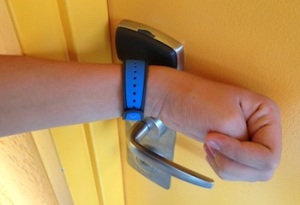
First off, the MagicBand replaces the room key for those staying at a Disney Resort, as we did. This isn’t a huge advancement in tech, as all it really does is take the chip found normally in the key card of a traditional hotel and places it in the band. Still it’s great to have one less thing to lose, because unlike a room key in your pocket/wallet/purse, it’s a lot harder to lose something strapped to your wrist (though I imagine some could still manage it!)
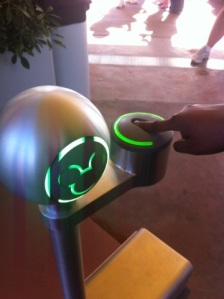
While the room key aspect of the MagicBand isn’t that revolutionary, the employment of the Band as a Park ticket is where things start to get interesting. Now Disney doesn’t care if you pass your band around your group when accessing your hotel rooms. Those rooms aren’t tied to daily admission. Park Tickets are costly, and everyone needs their own, so they added a second level of security at the gates to the parks themselves to ensure there isn’t any Band sharing. When you first scan your MagicBand at the gate, you are asked to place your index finger on a scanner. This effectively ties your MagicBand to your fingerprint, meaning no one else can enter a park with your MagicBand except you. That’s a great piece of security that isn’t that invasive to the entrance process. I had to redo my fingerprint at our second park, but I suspect that happened because I used a finger with a scar that gave the scanner some issues. Even with the second scan, it was not a time-consuming process.
If you are using a Park Hopper, which allows you to visit multiple parks in a single day, the MagicBand will work for all parks. You’ll have to scan that finger each time, but it’s usually a one-and-done kind of experience. We actually hit three parks in one day at one point, and the single park ticket on the wrist made the process very smooth. By the end of the week, entrance was a science. Smack your wrist to the Mickey till it turned green, then place finger on scanner until the bar went all blue, and you are on your way!
Magicband as a FastPass/PhotoPass
 Disney has been using the FastPass option for a while now. Essentially, a FastPass allows you to jump to the front (or near the front) of the line for the rides. Every ticket gets you three FastPasses for the day you are in the park. This isn’t a perk for people staying at Resorts, but having a MagicBand makes using them more convenient. Without a MagicBand, you are issued a paper ticket for the ride and time for each of your FastPasses. This means you’ve got three “tickets” to keep track of throughout the day! The SmartBand keeps your FastPasses for you, and you can double (and triple) check the times via the “My Disney Experience” app on your phone. A scan of the wrist at the FastPass entrance shows your name on a screen and you are on your way to the front. Insiders Tip: They do not check your fingerprint for the FastPass line, so you have the ability to swap bands. My daughter wasn’t interested in many of the roller coasters that we got fast passes for, so she often gave her band to a more adventurous cousin for a second spin.
 PhotoPass is another convenient service provided by Disney. The parks are filled with employed photographers, all set to take your family photos in front of iconic location like Cinderella’s Castle and the big golf ball at EPCOT Center. Again, the MagicBand can be used to quickly scan after the picture is taken, and the photo is uploaded automatically to your PhotoPass account. Another bonus is photo stations located after many of the rides (especially the coasters) where you can view your “during ride” pictures. You know the ones, with the scream faces! These stations have a place to scan your MagicBand as well, so those photos are instantly added too.
MagicBand as a Payment Source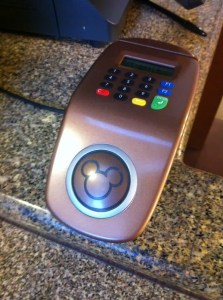
The final aspect of the Disney MagicBand is the most complicated. Basically, the band can replace your credit card, so in theory you can leave your wallet behind (assuming you aren’t buying any adult beverages). Like the secondary security at the gates with fingerprint identification, whenever you use the card for purchase you are required to enter a four digit PIN number. This is not only a convenient feature, but a required one if you are traveling with children, and you don’t want them buying a bunch of stuff at the gift stores without your knowledge. Without the PIN, the payment source aspect of the MagicBand is worthless.
If you are staying at a Resort and have a Dining Plan, you can use your MagicBand for that as well. It requires the PIN number, so keep that handy.
The Whole Cup Summed Up
The Disney MagicBand is a truly revolutionary tool within the Parks and Resorts. Without the band each person would be walking around with a park ticket, three fast pass slips, a hotel room key, a photopass card, and credit card/cash in the wallet. With this simple accessory all of those items are combined into one thing. Of course I still got locked out of our hotel room one day when I went next door to talk schedules and forgot to put my Band on. Thankfully someone was there to let me in.
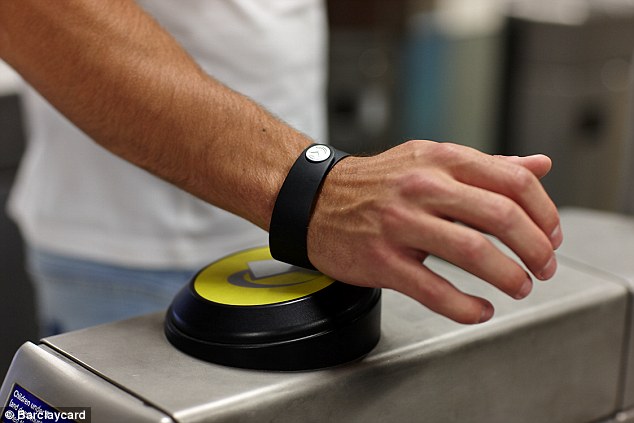 But here’s what I’m most excited about after using the Disney MagicBand for a week, and that’s the potential wider expansion. We are already seeing the possibilities with the wave of Smartwatches that are sweeping through the tech festivals this year. Apple is set to launch their first smartwatch in the coming months. Android Wear is being adopted by more and more companies. People often ask me why we need another device strapped to our wrist? Won’t that just be another distraction? I agree with that possible outcome if the devices on our wrists are too interactive. If smartwatches are just another screen to stare at, that is a problem. Imagine how many people are going to walk into walls as a result! But if the bands on our wrist can be closer to the MagicBand than the Apple Watch, I think there is great potential for widespread adoption. With Apple Pay, more attention is being given to the industry of mobile payments. Google Wallet has been around for a long time, but few use it. I see a future where your wallet truly is right on your wrist. And this new technology will be even more secure than our antiquated bar scanner cards, using things like Apple’s fingerprint verification. The possibilities are limited only by our imaginations!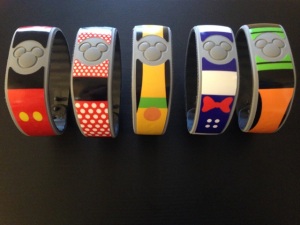
So if you are off to Disney and staying at a Resort, get ready for the Disney MagicBand, because you will get one. You can even jazz them up with stick on covers and accessories! Not staying at Resort, but still want in on the fun? You can purchase a band for $12.95 and activate all of the goodies already mentioned!
So strap that band on your wrist and wonder at the ease of use, the diversity of options, and the possibilities for such technology beyond the lands of Mickey Mouse, where the rest of the world is just waiting to join in.

The Tech of Disney** – Here Come the Reviews!
 We have just completed 8 days at Walt Disney World in Florida. We went with a specific plan, and months of preparation. But you know what they say about “best laid plans”. Managing 10 people (from an 8-year-old to the Grandparents), over the course of 8 days, where each day averaged 12 hours of actual Disney Park time was going to be a challenge. Kids had competing priorities, timing was a best guess much of the time. And so we had to make many adjustments to our daily schedules on the fly. And technology played a huge role in making those changes positive.
Over the next week of so, I will be posting a series of blogs about “The Tech of Disney”. Each post will focus on a different aspect of how technology enhanced our vacation (and the few times when technology failed us,  which was bound to happen at some point along the way). Disney has figured out many ways to make the vacation on their resorts a smooth process, but still we were newbies, figuring things out as we went along. I’m certain that our next visit to WDW will be even better because of the lessons we’ve learned throughout this week. And I know I will be looking for great apps again to make sure I am in control of my experience. Because while “going with flow” might sound good, planning and control are the best ways to make sure you get to everything you want to get to, and you don’t spend all our time in lines or on buses.
So check out the coming blogs if you have Disney in your future vacation plans, and hopefully I can help you out. Or if you’re a tech geek like me, make sure to read the blogs to hear a firsthand experience with the Tech of Disney!
**We also visited the Clearwater Marine Aquarium and Universal Studios/Islands of Adventure, so the posts will address the tech of those locations as well. Call it a bonus.


The Tech of Disney – Final Day

Our week at Walt Disney World is almost done. There has simply been too much going on to post during this week about the technology we’ve used in the parks, but I’ve been taking many notes.
Tech has played a huge role throughout our days. From last minute fast pass changes to wait times and park hours (even the need for the nearest first aid station at one point). I don’t know how people did these parks before the apps came along on the smartphones.
The tech of Disney has been more than just apps though (I got the chance to compare Disney to Universal Studios one day), and I’ll be sharing what I’ve learned in the coming week, once we’ve returned to the cold North!
The Tech of Disney – Considering Airport Tech
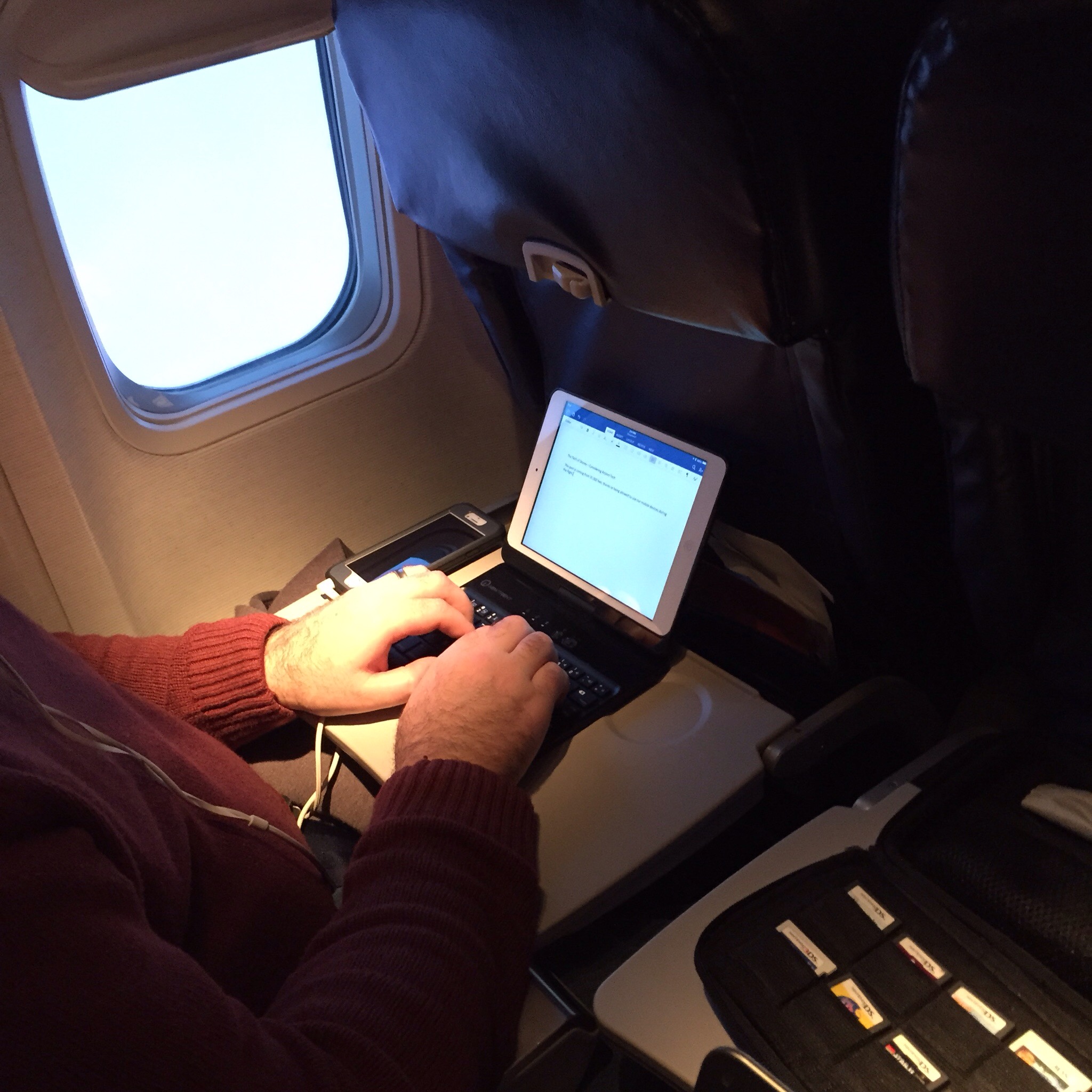
This post is coming from 35,000 feet, thanks to being allowed to use our mobile devices during the flight. I’m not the biggest fan of flying, but sitting here with my iPad, iPhone, and Kindle I definitely have my security blanket! I’d like to take a moment with this first post to talk briefly about the airport experience, considering how tech impacts the process.
Thanks to our group rate, we were able to bypass the long check-in line, and head to the group check-in kiosk. That didn’t stop the check-in person from being impatient and little snippy! I thought that was just something that happened on sit-com television. Ah, when art reflects life. We came into the airport with absolutely nothing that proved we had a reason to be there. Our tickets were purchased months previously. So it was just a matter of all the adults handing over the licenses to get the boarding passes distributed. I was surprised that we had to then haul our bags to the bag dropoff location. The last time I flew the conveyor belt was just behind the check in attendant (the ending of Toy Story 2 wouldn’t have been nearly as dramatic with the current setup).
Fo r some reason we got “pre-check status” for security and after a quick swabbing of my hands (checking for explosive residue!), and a journey through the metal detector, we were through security. I took note of the large cylindrical portal where less fortunate fliers were being subjected to the full body scan. We still have to fly home, so I might still have a chance to experience that first hand!
 Once to our gate, I looked around to see what the airport provided in terms of connectivity. I was happy to see lots of options, in terms of charging stations. They had the bar stool pillar, which was being actively avoided by everyone, due to it’s closeness. It was great to see other options though, including little metal booths with a bench and table, and a long bar, offering both USB connections, and regular A/C power outlets.
If you didn’t do your due diligence in charging before hand, you can definitely be charged up beforehand with all these options!
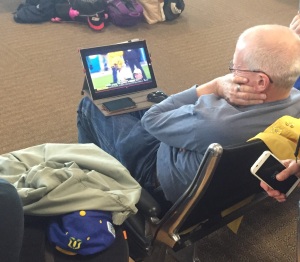 Being from North Dakota, my in-laws were very interested in the NDSU Championship game. And I am both proud and embarrassed to say that technology allowed for a rather exhuberant outburst from my mother-in-law when NDSU proved victorious! Being that the airport offered rather spotty WIFI, my father-in-law managed to get the game up and running on his Surface Pro 3 by using his Moto X as a hotspot. Two thumbs up from Two Cups of Tech for that one!!
So we continue on our way to Orlando. Where we will disembark with our Disney Magic Bands in place, and the real fun begins.
You all look really tiny from way up here!

On the Road – The Tech of Walt Disney World

We are packing up our tea pots and cups, and heading for Florida!
 I figure what a great opportunity to check out the tech that is employed by the “Happiest Place on Earth”! Several packages have arrived during the month leading up to the trip. First a package including luggage tags and baggage stickers (for transport of said bags directly to the resort – no bag return for us!).
Then the  “Magic Bands” arrived. These are what have me excited. Essentially they are smartbands, programmed with our Disney Experience (with accompanying app for the phones and tablets). The bands will serve as keys for the hotel room, tickets to the parks, and even can be used for purchases (take that Apple Pay).
Speaking of Apple Pay, the Disney Resorts now support this technology as well, so I’ll do my best to give the phone a swipe a few times to see how seemless the experience is. Though I’m not sure how it can be better than the Magic Bands!
I’m excited to see how such a popular vacation destination uses technology to enhance the visitor experience. Oh, and I am also excited for Space Mountain!
So here we go, on the road with Two Lumps of Tech!!
Apps of Note – Yahoo News Digest

In recent years Yahoo has been in the midst of a brand shift. They changed everything from their leadership to their logo. The company that was the “Google” of its day, has been looking for a way to get our attention, especially on our smartphones and tablets. They released a Weather App, which I also highly recommend. That app took advantage of the finger swiping we’ve all grown accustomed to on our hand-held devices. I’ve been using Yahoo weather since the day it was released. When I heard that Yahoo was releasing a News App, I was pretty excited to see if they could give me a similar experience, but this time instead of the 10 day forecast or storm warnings, they would give me a dose of the daily news. In my opinion, they certainly delivered.
Do you like to be informed on the daily news without feeling the need to become a news-junkie? Do you prefer your news to come in a package that you can knock out in five minutes flat? Then I’ve got the app for you. It’s called the “Yahoo News Digest”.
The Cup Half Full
The real genius of the Yahoo News Digest is you get the amount of news you want, which can be a quick glance, or an in-depth read. It’s up to you how far you want to dig. When you open the app, you get a list of 7-12 news stories stacked for a quick scroll through vertically. Each story is categorized (World, US News, Politics, Arts, Science, Entertainment, etc.). If you just want to see the high level news, one swipe and you’re done. Just the headlines and sentence or two. To go another level in, just tap which ever story you want to read and a short news article appears. Swipe up and down and you can read the article. Swipe left and right and you’ll be jumping through each of
the articles you had in the main screen. It’s fast!
Each article includes links to larger news stories, or relevant articles to consider for further reading. Once you’ve read all the articles available, you get a “Did you Know” fact that is related to the day or one of the articles you’ve just finished. It doesn’t take long to quickly scan through all the content, which is saying something in the world of the never-ending news cycle.
The Digest is delivered twice a day, and you set the time you want to receive it. My morning digest comes at 7am, and my evening one at 6pm. Finally the app has all the standard social networking links, so if you want to tweet about an article, post it to your Facebook wall, or email it to a friend, the buttons are right there for your clicking pleasure.
The Cup Half Empty
 The Yahoo News Digest is intended to be a “twice a day news” resource. If you want up-to-the-minute breaking news stuff, the Digest will not suit your needs. I put that as a “half empty” element, though for me, I like that it doesn’t constantly update with new information. Once I’ve read my 10 articles, I’m done till the next Digest is delivered.
You also have basically no control over what news you receive. Most news apps have a lot of customization built into them. Not interested in Kim Kardashian and the Hollywood crowd? Just turn of the “entertainment news” and you’re good to go. That’s not an option with the Yahoo News Digest. Though I’ve never seen a Kardashian article yet, so that’s good. Everyone gets the same “paper” for every daily edition, and for many that could be seen as a bad thing, in an age where we like everything customized for us.
The Whole Cup Summed Up
 The Yahoo News Digest is trying to do something very specific. Provide two daily doses of relevant news for the masses. The interface is clean and easy to use. The tap and swipe approach makes this app great for people just getting into smart phone and tablets. The ability to read stories quickly, but also dig deeper into the “in-depth” elements is great for a news-junkie like me.
But at the same time, Yahoo’s “one size fits all” approach to the app will certainly frustrate some users who want to only see news about things they are interested in. If that’s you, I recommend checking out “SmartNews”, which take news customization to a crazy place, and is also one of my go-to news apps that I use every single day.
I really like the Yahoo News Digest and think that it truly is news for masses. It’s the daily and evening paper of yester-year in a cool new package. So stay informed without the distraction of news apps that consume time and attention. Because it’s much better to experience the world than read about it.
Available on Apple and Android Smartphones and Tablets for FREE!

Review – WinBook 7″ Tablet Computer
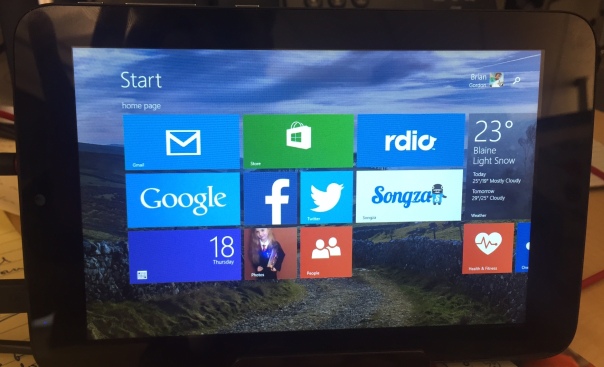
I have never been impressed with what Microsoft has done with tablets. Their first attempt to battle the dominate iPad was the Surface, and it was not successful. While tech bloggers offered decent praise for the hardware at least, the tablet was not well received by the masses. Since those days Microsoft has changed their tactics in regards to their premium line, and the Surface Pro 3, clearly is up against the MacBook Air. Now it’s laptop versus laptop, and the battle is truly on it’s way to being balanced. My few interactions with the Surface Pro 3 have caused me to question my long-held stance that Windows 8 is awful. So when MicroCenter sent me an invite to pick up a 7 inch Windows 8 tablet for only $50, I jumped at the chance to take a look first-hand. I’ve been using the WinBook for a couple of weeks now, and these are my first impressions.
The Cup Half Full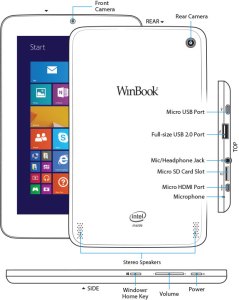
For starters, the hardware is pretty solid. The device is sturdy, the various ports are not loose, like you sometimes find with other cheap tablets. This is good because the device offers a vast array of plug in options (most of which are “micro”). It charges via a standard microUSB. It has expandable memory via microSD card. It has a micro HDMI for video output to HD televisions. And it has a fully supported USB 2.0 port. This last one is the real kicker for a 7inch tablet. With this single port, you can attach a USB hub, and virtually replace your old desktop. The tablet becomes the “tower” and you attach a monitor, keyboard, and mouse, and you’re good to go! That’s a pretty cool thing, and it’s something the iPad can’t do!
Beyond the ability to add peripheral devices, the WinBook tablet is a great form factor. It feels fine in one hand if you’re reading a book (via the Kindle app, perhaps). Unlike many higher end tablets, the bezel (edges around the screen) is thick enough to allow easy handling without accidentally tapping the screen.
The “tiles” interface of Windows 8.1 is pretty slick, once you get it set up. You can use the default “active tiles” to have updates show up on the tile itself, though this will impact the battery life. I choose to turn off most of those features, though I kept the active tile on for email and twitter. Adding apps is easy, and the app store comes on the default screens. But once you go past the build quality and number of plugins, many issues begin to arise.
The Cup Half Empty
While the build of the device is great, the screen is the weak point. It is obviously cheaper glass than what you will find on high-end devices like iPad or Galaxy Tab (let alone high end smartphones)! That means one thing….fingerprints!! I’ve done side by side testing with the WinBook and an iPad Mini, and where the iPad barely registers a spot on the screen, the WinBook is covered. That shouldn’t be a deal breaker for anyone, but I’m picky about the look of my screen. And I’m pretty sure I’m not alone.
The next issue I hit was during the set up. I had to head to google several times to figure out how to do 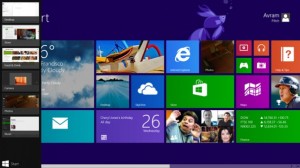 things like uninstall apps, stop apps running in the background (and killing my battery), and making various adjustments to settings. I was very disappointed when this happened because I hoped this would be a simple device that anyone could use right out of the box. For many, that will certainly be the case, but if you aren’t tech savvy, you might need help getting this thing up and running, and I wish that wasn’t the case.
Battery life on this tablet is pretty bad. If you work hard at application management (closing apps you aren’t using) you might get 4-5 hours out of it. The standard expectation these days is between 8-10 hours, so that’s pretty bad.
The last point I want to make about the WinBook is as much a comment on all Windows based tablets, as it is on this one device in particular.
The Problem with Windows – Tablet versus PC
 My 7 inch tablet looks a lot like a Kindle Fire, or a Samsung Galaxy Tab, but it doesn’t act like one. It acts like a PC. By that I mean, it acts like the desktop computer that Microsoft used to dominate the marketplace with for decades (and continues to dominate in the corporate space). Since my purchase I have received the dreaded “Windows Updates” quite regularly. And not only are these updates annoying, but they are draining on battery and memory.
Like all PCs that run Windows, there is a section of the hard drive dedicated for “recovery”. It’s intended to provide a backup if your device crashes. Such a file seems terribly redundant in a world of cloud computing, and also the recovery file takes up nearly 6 of the 16GB of memory that the tablet comes with! This is ridiculous!
One of my major beefs with Android phones is their tendency to have “bloat-ware” installed. You know the apps that you can’t get rid of and take up space. Samsung is one of the worst for this. But compared to the WinBook, Samsung looks like a lightweight. The WinBook came with so much pre-installed stuff that only 5GB of the 16GB of memory remained for me to use. After 6-7 apps were installed, I was officially “out of space”, and needed to buy a microSD card to add memory so I could install more apps/media on the device. And here’s the kicker, the space required for “system files” will continue to get bigger as time goes by, because Windows will keep pushing updates, while not removing any of  the older files (which can’t be removed manually). So if you added nothing to the device you would continue to lose memory space. This is absolutely unacceptable for a low memory tablet. I could see this being okay on a device with lots of memory, even on a Surface Pro 3, but for a low-end 16GB tablet, such software is simply a waste of space.
Microsoft needs to learn to differentiate between their tablets and their laptops/PCs, most importantly in regards to memory consumption. Apple retains a clear distinction (though that could change with a 12 inch iPad this coming Winter). The biggest issue is when a small tablet tries to impersonate a high-powered PC it will certainly fail somewhere, and I’ve had a negative user experience because of it. An experience I think most would also have if they had this device.
The Whole Cup Summed Up
 The WinBook has tons of potential. It’s a solid little tablet computer. The ability to plug-in peripheral devices (even external hard drives) is a great feature, and something all tablets should start being able to do. The interface of Windows 8.1 is not as bad as I expected, and after some painful setup I’ve been cruising along.
But the cheap screen, bad battery, and memory-sucking Windows environment make this a challenging choice for the casual tech user. As Microsoft continues to struggle with how to identify their devices (as tablets or PCs) the other major players have slick user experiences. Android and Apple might be in a battle for market share, but they are not at odds in regards with how to build a strong user base. Their apps stores are cleaner, their developers are more enthusiastic (meaning more apps and a better user experience), and their tablets are just that, tablets. With good battery life, and decent memory .
.
So if you are a die-hard Windows person, I’d recommend checking out the Surface Pro 3, though get ready for sticker shock with its $900 price tag (and that without the extra $130 for the keyboard cover!). The Surface is a PC masquerading as a tablet, and the marketing makes it clear that is what is intended. But if Windows isn’t important, or you’re only interested in a low price tablet, I suggest sticking with the devices of Android (i.e Nexus 7) or Amazon Kindle (i.e. Kindle 6) for the time being, while Microsoft gets it act together.

Review – Beats “Studio” Headphones

The mere mention of the words “Beats Headphones” is likely to cause an emotional response, from those who spend any amount of time committed to listening to music. Usually two camps will form. Those who think Beats are awesome, and those who think Beats are overpriced junk. While both camps have good points to make, the insistence of adhering completely to one opinion over the other only causes further confusion about what exactly these headphones are, and whether or not they are really worth the pile of cash it takes to procure them. I’ve had a pair of Beats Studio headphones for a couple of months, and I’d like to share my opinion about these polarizing headphones. Please bear in mind that I am a music head not an audiophile. It’s important to understand the difference, to know where I’m coming from as I review these “cans” (it’s easier to type “cans” than “headphones”).
Musichead: “Someone who is an avid music listener. They listen to music ALL the time, and usually are the type of people who know about the latest music, and they are always trying to put you on to a new artist.: (urban dictionary)
Audiophile: “A person enthusiastic about high-fidelity sound reproduction. Audiophile values may be applied to all stages of music reproduction: initial audio recording, production process, and the playback.” (wikipedia)
So the audiophile cares much more about the quality of recording, whereas the musichead’s focus is on the music itself (based on lyrics, vocal quality, etc). Beats offers several models of headphones, at varying prices, from the “urbeats” earbuds for $90 to the “Beats Pro”, which go for $360. My model is the Beats Studio (wired), which will run you $299.
The Cup Half Full
The Beats Studio headphones offer great sound. I say that as a musichead, and also as a guy who spent the past five years with either Apple earbuds or $15 Sony cans. Those options gave me good sound. They weren’t junk. The Sony’s were actually surprisingly good, but over time they have started falling apart, which isn’t surprising considering how cheap they were. If you want great sound, without the perfection an audiophile looks for, you will be pleased with the Beats Studio headphones.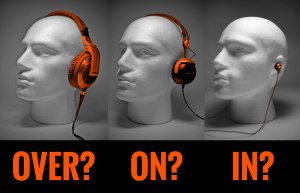 These cans are “over-the-ear headphones”, meaning your ears will be nestled down inside the soft “leather” of the earpads. I tried the “Sol Republic” headphones, which uses an “on-ear” design, but I found that they were pinching my head to the point that after 30 minutes or so I had a headache. Moving to the Studio design, I’ve found that I can wear these headphones for six straight hours without any discomfort, and that is a huge selling point for this design of headphones. The Sol Republic’s offer great sound (on par with Beats) but that on-ear design wasn’t working for me.
The Beats Studio’s offer noise-cancelling, which is internally powered. I’d never used this type of headphone before, and I really like the functionality. While not entirely noise-cancelling, the headphone completely cancel out all “white noise/ambient sound” and muffle everything else. I work in an office complex, and I finally feel like I’m not surrounded by a bunch of people. The noise-cancelling function is powered via micro-USB, providing up to 20 hours of listening between charges. This is both a good and bad thing. The older models required batteries, which would have to be changed frequently. But the charging design means that when you’re battery is drained, not only will the noise-cancelling not work, but the cans will not work entirely. So now you have another device to manage in regards to battery life and charging schedules. You can also use the headphones as glorified earmuffs, as they have a physical power button on one ear, allowing you to engage the noise-cancelling piece without actually playing music. I use that feature more often than I thought I would. 
A couple of notes about the case, and design for travel. The headphones collapse to make them easier to carry around. That said, they are still pretty big headphones, so even in their collapsed state, they will take up a good chunk of your bag or purse. Beats includes a carrying case. It looks like a big egg and it’s intention is obviously to protect the headphones, not make them any easier to pack in said bags. The case is just large enough to house the collapsed cans, the headphone cable, and the charging cable/wall charger).
Finally, a great feature of these headphones is the detaching cable. By not hard wiring the cable into the headphones themselves you will have a much easier time replacing the cable part should they become damaged (it happens!). Also the cable functions as the “power button” for battery element of the cans. When you put the plug-in place the battery starts, as does the noise-cancelling. Pull the plug, and you’ve effectively, turned them off.
The Cup Half Empty
First off these headphones are certainly a premium product. You are paying for the name brand and the “cool factor” that is associated with the Beats line. I was actually avoiding these headphones strictly because I didn’t want to give into the hype. I have audiophile friends, who insisted that there are cheaper cans with better sound. I just needed to do some homework. But I didn’t want to do some homework! I’m a musichead. I just wanted to listen to the music, and have the sound be “great but not perfect”. I tried many pairs on before settling on the hyped up/admittedly over-priced Beats headphones. And I have no regrets.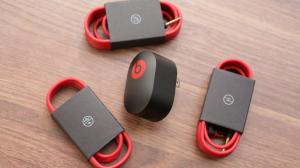 The need to manage charging, as mentioned, can be a bit of a pain. And the case is large, meaning it’s always in my computer bag. If you want a small set of headphones, these are not the one’s for you.
Finally a note about Apple’s purchase of Beats. The headphones come with both a standard audio cable, and an enhanced cable with phone buttons and volume. That enhanced cable will only work with iPhone/iPad devices. If you are on Android, or using any other type of music device (any Walkman listeners out there?), you might as well chuck that extra cable out, because the standard cable is the only one that will work for you. This will only become more the case, as Apple integrates the Beats line into their portfolio of products.
The Whole Cup Summed Up 
The Beats Studio headphones offer a great music listening experience (assuming you aren’t too picky about perfection). Noise-cancelling, both while listening to music and even when unplugged is awesome. Finally, the design works very well for long listening sessions, which for me was the most important factor. Are Beats headphones overpriced? Of course they are; all name brand products are. You can certainly get a Hawaiian Shirt for less than the $120 they charge at Tommy Bahama, but people often buy for brand. Beats are no different. So if you are a musichead looking for a great listening experience, and you’ve got the extra cash or Christmas money, consider these as a decent option. I’ve definitely found them to be superior to anything I used previously, and I am enjoying my music every day. And there are other advantages to them as well…

Note: If you are looking for a cheaper options, here are a few good sets, that won’t even set you back $100, let alone $300.
 Have a Cup of T(ech)