The Device I Can’t Wait To Use – Razer Nabu Smartband
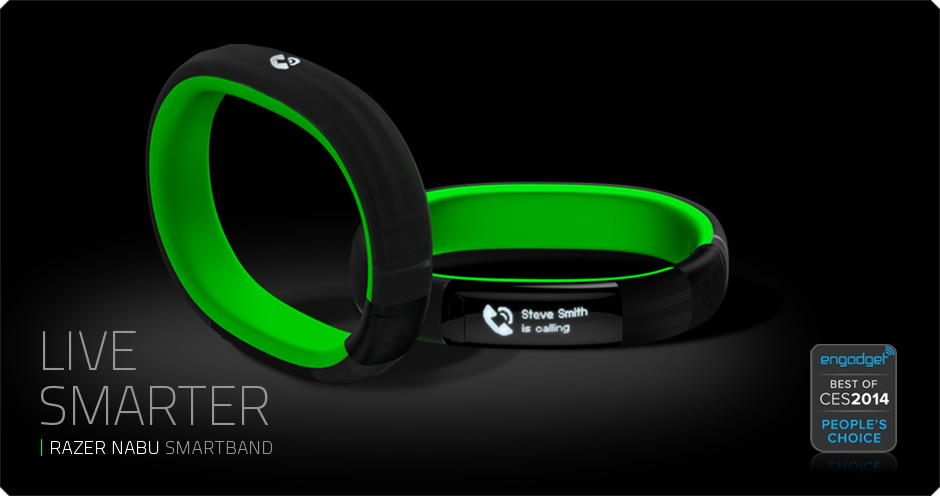
For the past month I’ve been introducing one device to everyone I know (and a few I don’t). And now I want to share it with you. Of all the upcoming devices this fall, this is by far the one I’m the most excited about. It’s called the Razer Nabu, and to say it’s a smartwatch would only give you part of the picture of why this device could be a bombshell in the current tech wars for our wrists. The Nabu has three areas of focus: notifications, fitness tracking, and a social element. While each of these areas has clear competitors, it’s when you put it all together that the smartband becomes something truly revolutionary. And the rumor that the device will sell for less than $100 is nothing but astounding.
It’s a Smartwatch
First and foremost the purpose of a smartwatch, in the current market, is to be an accessory for your smartphone. It’s a way to review incoming calls, read text messages, and perhaps even email. The Nabu does all of that. And their website hints at integration with even more tools like facebook, twitter, google maps, and skype. What make the Nabu different is how it notifies and how it is interacted with. Notifications come through via a small vibration. The screen is positioned on the inside of the wrist (they call it a privacy screen). You flip your wrist over to see the screen and that activates it (battery savings here!). Once you read the notification, you can press the button to dismiss, or simply shake your wrist and the screen goes blank. That’s pretty cool! You could almost say it’s a no-handed approach to notifications.
It’s a Fitness Tracker
Simply put, everything a top of the line fitness tracker can do, the Nabu can too. It tracks steps, miles, floors, and calories burned. It’s a step above the Fitbit Flex wristband, being that it has an altimeter to measure flights of stairs. The expected price point for the Nabu puts in on the same level as the FitBit Flex, and cheaper than fitness trackers from Nike, Jawbone, and Garmin (among many many others). The fact that you are getting all the smartwatch features on top of your fully functional fitness tracker is like icing on the cake.
It’s a Social Connection Tool
Here is where the Razer Nabu gets completely ridiculous, and where my skepticism is introduced. I have no doubt that they can release a wristband with a unique notification system and a fully featured fitness tracker. What they plan to do with the social element of the Nabu is where they could truly be moving into uncharted territory. Since the device isn’t out, I can’t verify anything, but here, essentially, is what they plan to do.
Say you’re out at the bar and you meet someone and you want to exchange information to get in touch in the future. Old school days, you’d be writing a phone number on a napkin or your hand. Recent years, you’d be calling each other’s cell phones to add it to your phone book. In the world of the Nabu, if you both are wearing the wristband, all you have to do is shake hands or high five and the information is exchanged. If it works in the bar, imagine how it could work in the business world. Say goodbye to business cards, it’s all in your wrist! That could be revolutionary, if it works. And it could lead to storing more information in your wristband, like your credit card for purchasing with a swipe of the wrist. Who knows where this could go!
Razer Nabu Smartband – Coming Soon!
So that’s what I’m super excited about these days. The device was supp osed to roll out months ago, but it was held back to deal with questions about hypo-allergenic issues, which recently caused the recall of FitBit’s top wristband. So this company is taking it’s time to give us something awesome. Razer is well respected for it’s gaming peripherals (read keyboards and headsets) so they aren’t some Kickstarter with a dream (though sometime those work too).
The device is supposed to launch in October 2014 and will be compatible with Apple and Android from the very beginning! So check out their official website, and watch the cool video showing this thing in action. And if you’re still on the fence, you can wait for my review once I finally have this amazing little device on my wrist!
Below you’ll find some reviews from people who’ve actually used the Nabu Smartband.
Apps of Note – Hanx Writer (iPad app)

Sitting atop the free apps in the App Store is an odd choice. It’s a typewriter app. It’s actually the typewriter app that I am using to write this short review.
So, I guess Tom Hanks (yeah the ‘life is like a box of chocolates’ Tom Hanks) is really into typewriters. Seems to border on an obsession, but then again, I can think of worse things for a movie star to spend all his piles of money on. Mr. Hanks has decided to try and infect the rest of us with his typewriter hysteria, by way of the “Hanx Writer“.
The Cup Half Full
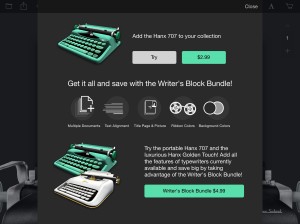
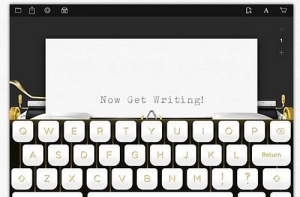
The app comes with one free typewriter interface, and it’s a decent design. You get an onscreen keyboard with buttons that actually move down as you press them. Of course half of the fun of typing on a typewriter simulator is the clicking sound of each letter and the PING of the carriage return. Fear not! There is no requirement that you physically move the carriage tray back to the left once you reach the end of the page (though you gotta admit that could be kind of cool). You get all the standard word processing options, including spell check, and the ability to backspace (no white out required). But for the courageous, you have the ability to turn off “modern delete” and type without the ability to correct. I am not that brave. While the free typewrite is decent, you do have the option to add additional typewriters for $2-$5. I’ve already made the upgrade to the “Writer Bundle” for $4.99 (see above).
The Cup Half Empty
There is a glaring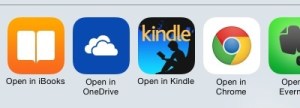 issue with this app, which has been well documented in the app store reviews, and it’s all about the export options. Basically you are typing a PDF document on this app. I say that because all of the export options (of which there are actually quite a few) only let you export in PDF format. You can’t export to Word or even to Pages. You can send it to Microsoft’s One Drive cloud storage, or Evernote, iBooks, or Kindle, but all you can do with the document there is READ it. I have found that you can copy and paste into any word processing app you might be using, so there is that. Though it’s certainly not ideal. I wouldn’t be surprised if the popularity of this app brings about some new exporting options in the future.
The Whole Cup Summed Up
The Hanx Writer is certainly a geeky indulgence. Are there better writing apps out there, with enhanced functionality? Of course there are. But the joy found in the sound of each button press is definitely something that will trigger the romantic side of many writers. The idea that we are getting a taste of an old way of crafting words and sentences into characters and story.
I’ve long held that the technology that captures our fascination and imagination the most are those that offer new ways of doing things with which we are familiar. And the Hanx Writer, typewriter simulator, is the essence of that idea turned right on its head! Doing something old on something new, in a revolutionary way!
So if you have an iPad or iPad Mini, and want to take a trip into composition’s past, grab this app and get typing!
First Impressions – Amazon Fire TV
After much debate I finally gave in a week ago and got a Fire TV from Amazon. This is the first media streamer offered by the company. Being that I have used almost every media streamer on the market, I was highly skeptical of Amazon’s entry into an already packed field. A few unique features had piqued my interest, but it was still a $100 streamer, and that’s not a price point that I personally consider an impulse buy. It was the gaming feature that I was most interested in, and when I read on the tech blogs that you could use a USB Xbox 360 controller (which I happen to have) instead of buying the $40 amazon controller, I took the plunge.
The Cup Half Full
Like all things Amazon, the setup is a breeze. Frankly, I’d be surprise if someone could mess up the process. You just plug in the HDMI to your TV, and then turn on the power. I quickly discovered that you are immediately greeted by a non-optional tutorial video. After that you are up and running.
If you own a Kindle Fire tablet, all of your apps that are compatible with Fire TV will be there. And adding new ones is super easy. There are plenty of free channels, including several free games to let you test out the device.
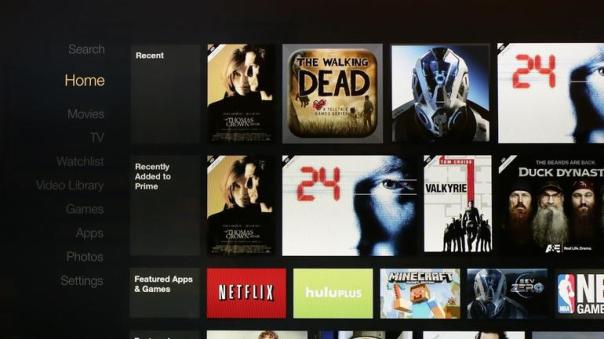
Almost all of the major content providers are represented: Netflix and Hulu chief among them. Of course Amazon has their videos (both Prime and Purchase) front and center. The remote has a well publicized “voice search” option, which works well, but only with Amazon content. Interestingly, I did a voice search for a game I knew was in the store (because it was well reviewed on a website) and the search couldn’t find it. So there’s that.
Finally, the gaming experience has exceeded my expectations. Bear in mind I am not a hard core gamer by any stretch. I prefer Mario over Halo. I liked a few of the games I was playing, “Dream Flight” being the one I spent the most time playing (and it cost me a whole dollar!). Then I plugged in my USB controller and loaded up “Asphalt 8”, which is a car racing game. And I was blown away. The graphics are on par with the original Xbox, and the game play is easy. And the game is a blast. And it’s free! You get to play a few courses before you start needing to either win races to get money or pull out your credit card. I can see myself really getting into this game. And for this reason alone, I’m happy I made this purchase. But I’m not happy with everything.

The Cup Half Empty
Netflix is a rental company, they always have been. Their goal is to get your monthly dues and then that’s it. No strings. Amazon is an entirely different beast, and it’s nowhere more evident than on the screens of the Fire TV. Amazon wants you to buy things. On the Fire TV they are mainly peddling movies and TV shows. I would imagine that as their Prime Music service is developed, that service will follow a similar path. And that is my first beef with the Fire TV. When you use the very cool voice search option, you will get content but you won’t know off the bat if content is Prime (meaning free with membership) or if you’re going to need to drop some coin to get to watch it. That really frustrates me. I rent my fair share of movies on Amazon. I’m not opposed to that aspect of the company being the replacement for Blockbuster Video. But when I want to browse the “free” stuff, they are not making it as easy as it should be. And certainly not making it as easy as Netflix and Hulu make it. But Amazon is a content seller, not a rental service provider. That’s why Prime Videos and Prime Music still feel like a perk to the service versus a fully fleshed out service standing on it’s own against it’s competitors.
My other issue with the Fire TV is the User Interface (UI). Basically, that’s the screens that you browse through. The structure of the screens is not as smooth as the UI on Roku or Apple TV. And, again, they are constantly steering you towards Purchase/Rental Content, which just makes it feel like you have a salesperson in your living room trying to constantly make you buy things. They don’t need to push so hard, in my mind.
The Whole Cup Summed Up
The Fire TV is most definitely a first generation device. Since I’m usually an early adopter for tech toys, I was prepared for that going in. The first Fire tablet was replaced by the infinitely improved Fire HD and HDX tablet lines, and I’m certain that is what will happen with the Fire TV (assuming they are selling enough units to keep the line going). The next generation will have an improved UI. I’m not sure if they will ever make the Prime stuff separate from the rest, but there are still plenty of things they can do to make browsing content a better experience.
The strongest thing the Fire TV has going for it, which also seems to be the thing they are pushing the least, are the games. At $99 it is easily the cheapest gaming system you can play on your TV with a traditional controller (except for a couple Kickstarter systems perhaps). The support for USB controllers is nice, and 3rd party companies will certainly make Bluetooth controllers below the $40 price point for Amazon’s branded device. And that is something that Roku has only tried casually, and Apple TV hasn’t tried at all. But we will probably have to wait for the Fire TV 2 to see the improvements that will make this device a must own for the casual gaming, and casual media watching crowd.

This post will be updated when I have used the device long enough to give a more detailed review.
HaikuReview – Subway Surfers (iOS and Android game)

Simple Gesture Game
Left Right Jump Roll, Tons ‘o fun
Couple minutes gone
You have daily goals.
False sense of accomplishment.
What am I saying?!?!
Goal: Jump over trains
Had to get the super shoes
Bounce High! Achieve Goal!
Goal: Bump into Trains
Can’t get caught and still hit ten
Bang Bang! Got that one!
I love simple games
Need only a few moments
Fun at fingertips
Achievable Goals.
In app purchases option,
But are not required
The best part of all.
This will make you want to play.
Two words: Hover Boards!
Try subway surfers
And join the world tour today
Everyone has time
Review – Everything Me (Smart Launcher for Android)

What is a Launcher? I hear this all the time. What do you mean you can change it? Why would I want to do that anyway? These are good questions. In a market dominated by the iPhone, most people don’t even realize they are using a Launcher. You are. It’s that grid of apps and folders on your iPhone screen. That’s your launcher. It’s how you interact with the device. And on an iPhone it can’t be changed. And that’s okay. It’s a good interface, and it’s certainly easy to use. So no worries all you iPhone users. I’m even an iPhone user from time to time, and I don’t mind the Launcher. It’s the same Launcher on my iPad Mini. So don’t get hot under the collar when I tell you that Android is different. With Android phones your Launcher can change, and it’s pretty cool when it does.
These are launcher screens. In order, they are HTC One (M8), iPhone 5S, and the Samsung Galaxy S5. All similar but different in their approach.


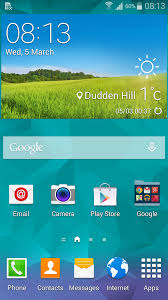
Every single Smartphone has a stock launcher. HTC has Sense. Motorola has BLUR. Samsung has TouchWIZ. When you first turn on your Android phone, you will be staring at one of those Launchers, masquerading as your phone’s “operating system”.
I currently use an HTC ONE (M8), and for the first couple months I used the stock Launcher, “Sense 6”. It’s a slick interface, but it looks a lot like every other launcher, including iPhone’s design. Both Apple and Android launchers have the ability to move apps around, and add folders. What makes Android different is you manipulate the screen in different ways. You can place apps in specific locations (not tied to the grid pattern), you can add widgets (that’s how Android phones have that big clock on the screen), you can even leave the screen blank (for the minimalist crowd). Android offers so many choices. Just open your Widget menu and feel your eyes glaze over at all the options. For the casual tech user there are simply too many, I would argue. So I set out to find a better Launcher.
My goal was simple. I was going to find Launchers that did everything for me. I don’t want to build my own folders. If it’s a game, put it in a folder called “games”. But I wanted to go even further. I wanted the device to figure out which apps I wanted and make them available. I wanted the phone to look different based on where I was and what I was doing. I didn’t want to have to do any work. What a quest! Impossible you’d think. But after testing out over ten launchers I settled on two. They are Everything Me and Aviate. While I’ve used both launchers consistently, for the sake of your time, I’m going to focus on my favorite, Everything Me. Perhaps Aviate will get its own moment in the spotlight down the road, as it’s a very close runner up. So let’s talk about “Everything Me”.
Everything Me
I’ve been using Everything Me for a couple of weeks now. This Launcher is what you’d call “smart”. That means it uses a variety of source data to customize your experience with your smartphone.  Replacing the stock launcher with this smart launcher is a simple process, and after you’ve entered a few pieces of information (location data for the most part) you are up and running. You’ll notice right away that the interface looks very similar but also very different. The grid of folders is still there, but it’s automatically grouped. There’s also a spot called “FIND”. And it’s there that Everything Me first shows why it’s such an amazing Launcher.
Amazing Search Function
The find button is truly what makes Everything Me unique. It gives you the option to either type or speak to search. When you search, the phone will bring back results both from your phone (installed apps, contacts, calendar, etc) AND from the Internet. That’s right, it basically does a google search for everything you are looking for.
The best demonstration I’ve found for this is a new album from my friend’s band “Put Down the Muffin“. I have the CD saved on my phone. When I search for “Put Down the Muffin” my phone brings back internal results, including a button to direct me right to the album within the Google Music app that I use to listen to my music on my device. But it also gives me Internet Links (by way of app icons) which send me to, say, the bands Facebook page! It’s remarkable, and combines several searches into one.
The Smartest of Smart Folders
When I say the folders offered by Everything Me are smart, I mean really smart. The folders are generated automatically when you set up the Launcher. Games go in “games”, music apps go in “music”. Other smart folders on my device include, “news”, “shopping”, “health and fitness” and even “I’m Bored”. You can add and remove smart folders, you can move them around the screens, and you can customize them if you choose, though you probably won’t need to. But the creation of the folders is only the tip of the iceberg.
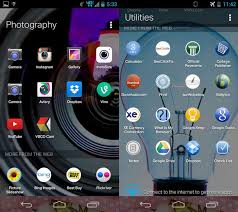
When you click on a smart folder everything changes. The wallpaper picture changes to something related to the category. The “social” folder shows a bunch of people’s faces in a huddle, the finance folder has a calculator, the photos folder has a camera lens, all serving as the background picture. The apps you have installed appear at the top (as the buttons you are used to), but just like the search function, the smart folder contains web search information for that category as well, appearing as additional apps. So when I click on “shopping” I see the apps I have installed “Google Play, Amazon, Target” but I also get links to web pages for other stores as well that I might consider. It’s a fast way to see more than you’re initially looking for, but perhaps exactly what you want to see!
The Whole Cup Summed Up
Everything Me is the best example I’ve found of a Smart Launcher. While so much is done for you, there is still the option to add your apps as icons, to add widgets, and personal wallpapers. The interface is still a grid of icons and folders, so the look isn’t too foreign to someone used to a stock launcher. But with Everything Me, I rarely go past the “Find” button, because if I want to do anything from make a phone call, listen to a song, search the web, or play a game, all I need to do is tell the phone what I want to do, and it takes care of the rest.
It is truly a SMART option, for us lazy people who don’t want to type stuff, or have a logical organization system for our many applications. So give it a try, because the best part is that this application is free and ready for you to experience.
HaikuReview – Mailbox Application
“Mailbox” is a great email application available for both Android and iPhone for free. What follows is as much a set of instructions showing its unique functionality, as it is a review of a product I’ve used since the BETA over a year ago. Definitely worth giving a try. My inbox has never been better organized, and less frustrating!
Email Made Simple
Use Swiping to Keep It Straight
You Are In Control
Slight Swipe Right – All Mail
Easily Search History
No More Scroll and Search
Hard Swipe Right – Delete
It Will Be Gone Forever
Clean Up the Mailbox
Slight Swipe Left – Remind
Select When You Want To Read
It Will Reappear
Hard Swipe Left – Folders
Create Space to Keep it Straight
Your Categories
If you make mistake
Just give the device a shake**
And you can undo
Email Set Apart
From All The Competition
Download It Today!
**’Shake to Undo’ iOS Only
HaikuReview – Samsung Galaxy S5
HaikuReviews are an attempt to package the good, the bad, and the bottom line for different devices, as quickly as possible, but in a fun way. Hopefully offering an enjoyable alternative to normal tech reviews focused on specs.
Bright Screen, Light Weight, Fast
Waterproof, Headphone Jack Nice
Feature Packed Device
Flimsy Toy Like Feel
Boxy Chrome Edge Is Tacky
Fingerprint Swipe Bad
Too Many Options
That Will Go Unused By Most
Heart Rate Check, Really?!
Newest Samsung Choice
Over Packed And Cheaply Made
Not The Phone For Me
Kindle Unlimited – The dawn of something new for digital readers??

One of the biggest stories this past week in the tech blogs was all about Amazon’s new offering, “Kindle Unlimited”. I have been a Kindle user since the Kindle 2 was released in 2009. And I’ve had a couple different models since then, including the Kindle Paperwhite, which is my current device.
Of all my gadgets and gizmos, I have always held the Kindle to be my favorite. I believe our personal tech should constantly amaze us. And while I use my smartphone and my iPad more often, it is the Kindle that causes that excitement again and again. There’s a hilarious bit Louis CK did on Conan about people flying on airplanes. Passengers were told that the plane now offered free high-speed Internet. When the service failed mid-flight, a fellow flier was immediately pissed. Louis CK’s response to his frustration was “We are FLYING PEOPLE!!! Isn’t this AMAZING?!? You are sitting in a chair IN THE SKY!!”
Our tech should cause us to feel that kind of wonder. And after years and years of reading physical books in dimly lit rooms, and struggling to keep track of notes for book groups, I now have a device that fits in my back pocket, holds thousands of books (a little overboard, I’ll admit), lights up, manages my notes, and provides dictionaries and Wikipedia links to help me keep track of more complicated story plots and characters. One click and I’ve downloaded a thousand page book right into my device. It’s a wonder. And after five years, it is still just as amazing as “sitting in a chair in the sky”!
Kindle Unlimited is supposed to be a big deal, a game changer, and I would look like the target audience. But I’ve been reading blogs like crazy and I’m ready to give my initial reaction. To keep with the site’s theme, I’ll break it down with “the cup half full” (good stuff), “the cup half empty” (bad stuff), and the “whole cup summed up” (summary).
The Cup Half Full
Who can argue with access to 600,000 books of all categories, and 150,000 audiobooks via whispersync? It’s important to bear in mind that while this gives you access to the “Audible” service, it’s only a 3 month trial for the 150,000 books, and afterwards you will be restricted to a smaller group of 2,000. It’s also important to note that in order to take advantage of the audiobook function, you’ll need a device with audio output. The Kindle Fire line will work (and any other tablet computer or smartphone), but the average Kindle, like my Paperwhite, does not support audio.
For $10 a month, the ravenous reading crowd will find great value. There are even a few big name books that almost anyone would find value in. Examples: All the Harry Potter books are present, Lord of the Rings Trilogy (if you can stay awake), and the Hunger Games books are there. It’s a great step in the same direction that Spotify and RDIO took music subscriptions services, and Netflix took film “rentals”. But it’s only a first step.
The Cup Half Empty
As a subscriber to amazon’s Prime service, I’ve had access to the “Kindle Lending Library” for quite some time. This service allows Prime members to access one Kindle book from a specific selection per month. What Kindle Unlimited does, in effect, is make the lending library available to everyone, for the first time allowing the service on non-kindle devices, like the iPad. I suppose that could be an item for the “good” list, but the problem is that the lending library has never provided a wealth of great reading options. This is clearly seen just by looking at the marketing of Kindle Unlimited on Amazon’s own website. The three main books you’ll see are the Harry Potter series, Hunger Games series, and Lord of the Rings.

Those are all great books (which became decent movies, wink), but don’t expect the soil beneath these best sellers to provide similar fruit. The lending library offers a great way into lesser known works across a wide genre range. But for the majority of readers that won’t be good enough. Amazon has been in many well publicized fights with a variety of book publishers, and those battles have resulted in Amazon launching Kindle Unlimited without a single major publisher on board. So if you want to read the New York Times best seller list, don’t expect this service to help you out.
That’s my biggest concern with Kindle Unlimited. While many are calling it the “Netflix of books” that’s only true if Netflix didn’t have any deals with major studios (which is far from the case). Amazon must find a way to either make peace with the publishing houses, or force them to finally change their business model (to favor amazon, interestingly enough). That’s no small task, and until amazon figures that out, this service will be constrained by its lack of titles.
The Whole Cup Summed Up
Are you a voracious reader? Do you chew through books the way some people fly through the new season of “Orange is the new Black” over on Netflix? If so, this service is perfect for you. Do you like to discover new things, and aren’t reliant on best seller lists to determine what book to crack open next? Then slam down that $10 and get started, it’s a no brainer. But for the rest of us, it might be best to hold off until the program grows a bit. Of course it’ll only grow if people show an interest in it. So there is a potential “investment opportunity” if you’re playing the long game.
I’m going to keep my 30 day trial going, and see what I find, how much I actually get read, and whether the cost is realized in actual value. I’m particularly interested in understanding how the Audible trial works. I’ll report back, at the end of the trial, as to whether I continue with the service, or if I just head back to my one book a month from the Prime lending library. For now, I’m skeptical, but still hopeful this is the beginning of a whole new way to be a reader in the digital age.
Coming Soon…
Have a Cup of T(ech) will begin posting sporadically in July 2014, with regular weekly posts beginning in August 2014. In the meantime, feel free to check out my twitter feed, where I’ll be re-tweeting tech stories I come across, with occasional original tweets as well.
My twitter feed is @twolumpsoftech
Stay Tuned, there’s more to come…
 Have a Cup of T(ech)