Blog Archives
Review – Nexus 9 Tablet

When I took the Nexus 9 out of the box, the first thing that struck me was the unique size. I’ve had several 7 inch tablets, and also a 10 inch iPad for many years, so when I first took this 9 inch device into my hands I was a little perplexed over the reason for such a size.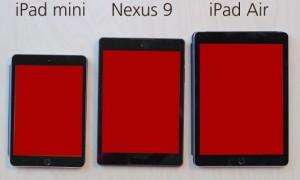 It’s basically a small iPad or a large iPad Mini (to put it into the Apple terms that most would be able to relate to). The device most similar to the Nexus 9 on the market right now is the Kindle HDX 8.9 from Amazon. That particular tablet can go toe-to-toe with Nexus 9 in terms of specs, but comes in $20 cheaper. Of course, the Nexus 9 gives you a clean Android operating system, versus the highly customized Kindle software. So maybe the $20 saved isn’t worth it, if you want more than Amazon’s somewhat limited app selection.
The battle over tablets has reached a fever pitch in the past couple of years. Some signs even indicate that the devices have peaked, as sales are starting to flatten out, or even drop in some cases, in terms of year-over-year growth. Even the all-powerful iPad is not immune to this. Simply put, people who wanted tablets bought them, and now they don’t need another for at least two years, and in many cases the time is much longer. So the tech companies are now heading back to the drawing board of sorts, trying to come up with the next evolution of tablets that will bring consumers back to the table. It’s my opinion that the Nexus 9 is the first effort from Google to do just that. They haven’t done anything huge yet, but by placing the size smack-dab between the small and large tablets, they are in effect offering a middle of the road option for consumers uncertain about what tablet they might prefer. The battle for tablet consumers is only made more intense by the increasing size of smartphones. Where “phablet” was once seen as more of a joke than an actual phone people would want, now the market for the 5 inch screen on smartphones is the strongest of the lot. So as the 7 inch tablet starts being challenged by the smartphone market, and the 10 inch tablets are often seen as too high priced for many consumers, tech companies are looking for ways to offer a better tablet at a competitive price. And that brings us to the Nexus 9.
The Cup Half Full
I did not initially like the Nexus 9. I used it casually over the course of the week, and found myself longing to return to my standard iPad Mini. But then I sat down with the device for a few hours and really dug into it. I got to know the new operating system, Lollipop, and then my attitude started to change.
Lollipop does something that comes as a shock to tech followers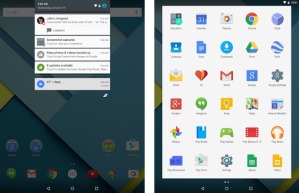 , it finds Android copying Apple! It’s been the other way around with Apple ripping off Android for so long, it’s kind of refreshing to see the flat simplistic approach Apple employed with iOS 7 (and now iOS 8) brought into Android’s Lollipop. It’s a welcome change. The previous operating systems, Jelly Bean and Kit Kat, were often way too dark, and the buttons didn’t always make the most sense. That all changed with Lollipop.
I like many of the features, but I will focus on two of them here. First is Multi-User Access. I had the original Nexus 7, and one feature I liked about that device was the ability to set up a “guest account” so others could use my device without messing up my stuff. Lollipop is making multi-user accounts even easier. You can swipe between Google accounts easily, if you’re like me and have multiple email addresses for various reasons. But you can also create additional profiles that can have total access to your google apps, have limited access based on your settings, or have unique profiles built from the guests own google apps using their login information. It’s easy to switch between accounts, right from the notification screen, and the setup was a breeze. This is a feature missing from iPads, and it is a key advantage Android has over Apple currently.
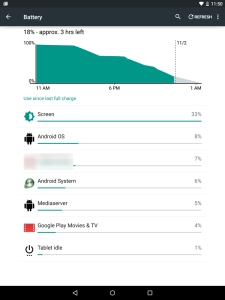 The other setting option I like is all about the battery. Sure all mobile devices have battery settings. This is where you can see your percentage and turn on your “energy saver” (which the Nexus 9 also has). But the difference with this device is that it will calculate the estimated battery life and graph it for you, so you have a good idea how long you’ve got before you need a charge. I tested out this feature with the screen at full brightness and then at minimal brightness and I saw a four hour time difference in battery life! That’s very useful and very telling about what exactly is sucking the life out of your battery. And it isn’t your addiction to Candy Crush (probably…)
Finally, I absolutely love the speakers built into the front of the device. This is HTC hard at work moving those speakers from the bottom of tablets to the spot where they belong. The Nexus 9 cranks out the sound. It’s not quite as good as the speakers you’ll find on the Kindle Fire line, but it’s better than anything Apple is doing these days.
The Cup Half Empty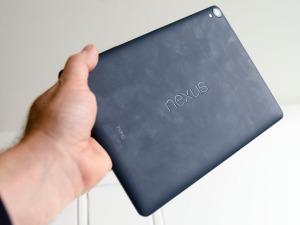
Google tries to sell the Nexus 9 as a “one-hand tablet” but I didn’t find that to be the case for me. It’s simply too wide. It suffers from the same issue as the iPad Mini. You can’t one-hand the device. To be fair, the rubber back of the Nexus makes one-hand holding a little easier than the metal-backed iPad Mini, but it’s still awkward and risky, unless you’ve secured it in a solid case. Beyond the size of the case, the build quality of the Nexus 9 just doesn’t seem on par with other $400-$500 tablets. It feels more like a $200-$300 tablet. By feel, I am referring to the cheap rubber back, and the cheap glass. You’ll find the oils in your fingers will smudge both sides of the tablet very quickly. I did side-by-side testing with an iPad to see how quickly fingerprints appeared, and the Nexus was immediately evident with a couple taps on the screen. The iPad put up a better fight, and that is because of the quality of the glass, and the way the glass screen is attached to the device (iPad glass is glued to the surface of the screen versus laying on the screen like the Nexus 9). In addition the volume and power buttons are loose and, again, feel cheap. Google contracted HTC to build the Nexus 9 and the only evidence of that are the metal edges, which show just a shadow of the beautiful HTC One smartphone line. I wonder what the Nexus 9 would have looked like if Google had allowed HTC to bring that design to the larger form.
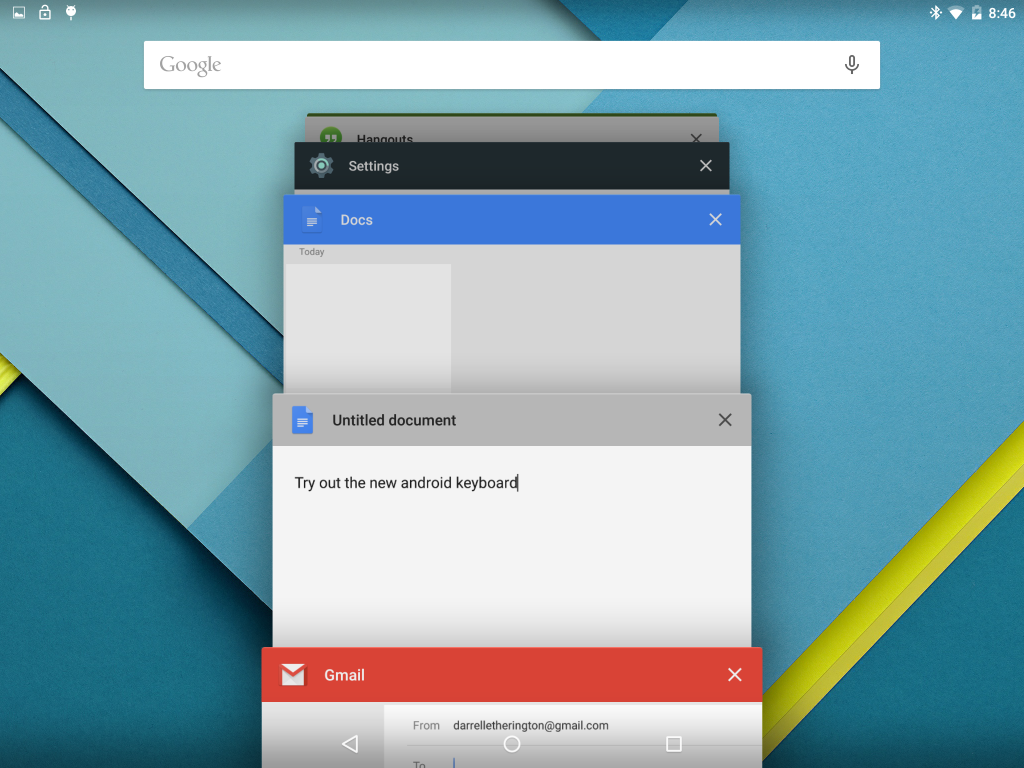 While I really like Lollipop, there is one element that frustrated me, and that is the multitasking pane. When you click the multitask button (right hand button), you get a tiled view of all your open applications. It’s similar to Safari’s Multi-Web page view, for those familiar with the design. You can scroll through your various apps and move between them easily, but when you swipe them away you must do this smoothly or the app will bounce to the side and stay in place. I found that the multi-task pane filled up with lots of apps quickly, and it was a chore to clean up those apps running in the background (which is definitely a good habit to save on battery life).
The last issue I have with the Nexus 9 is the price. The 16GB model starts at $399 and that is simply too much for this device. Since the device doesn’t offer expandable memory, you’re probably best served with the 32GB for $479, which is the largest you can get (no 64GB at this time, unlike many other high-end tablets). The general consensus among reviewers is that the Nexus 9 is a great $299 tablet, and I would agree with that conclusion. With a better build, the device’s software certainly justifies the cost, but the Nexus 9 isn’t there. Remember that Lollipop is very new, so while it is currently only available on a few select devices, given a little more time you will be able to experience this operating system on many other smartphones and tablets.
The Whole Cup Summed Up
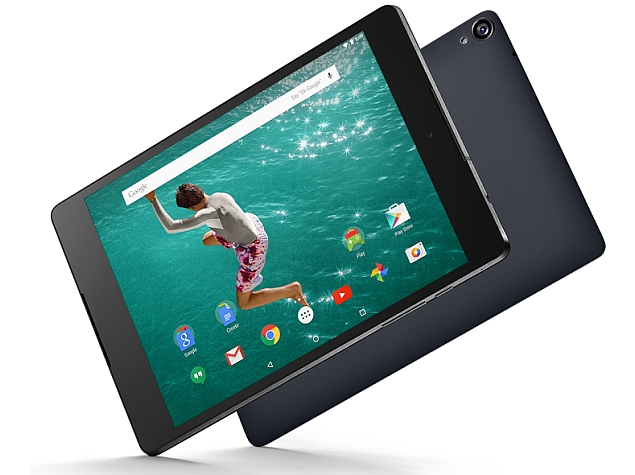 The Nexus 9 ended up being a much better device than I thought it was going to be. While the device looks and feels very mid-level for a tablet, what is under the hood is actually very impressive. Lollipop is a huge step forward for Android; It is an operating system that feels much more consumer focused than previous versions. I am certain that consumers who are less comfortable with this type of technology will feel fine on the Nexus 9. But should they get it? Is it worth the $400 price tag when you can get an iPad Mini with similar specs for $100 less. Or an iPad Air with superior specs for $100 more? I would say to steer clear of the Nexus 9 at this point, unless you really enjoy the Android operating system. There are certainly plenty of people out there who love Android the way others love Apple. And for them the Nexus 9 is a good choice. It’s the best tablet yet of the Nexus Line. It offers amazing speakers and a size that makes it more useful than the typical 7 inch tablet.
The Nexus 9 is the first entry in what I think is the next evolution of tablets. People are used to their 7 inch tablets and 10 inch tablets, and they don’t need new ones. Well, the tech industry won’t stand for that! They need to get everyone excited again! The Nexus is a new size (well Kindle did do it first, I guess) and it indicates a trend to the tablet line that is looking for a way to differentiate themselves from the giant smartphones (iPhone 6 Plus, Samsung Note 4). I’m excited to see what is coming in the next year. New tablets and smartphones will continue to change the landscape and hopefully the casual consumers who bought iPads by the truck load will reap the benefits.

Tech of Disney – Two Awesome Apps!!

Our Walt Disney World vacation was a success and everyone involved agreed that technology played a central role. We’ve already talked about how MagicBands made negotiating the parks, resorts, and souvenir shops easier. Today we’ll look at the applications we used during (and prior) to the trip to make sense of the madness and make sure everyone had a great time.
Disclaimer: Our vacation was in January, which is a slow month. So bear that in mind when making your plans. Even with these great apps, heading to WDW in July will always be pretty busy, but I’m sure these apps will help.
I was the “tech guy” for our trip and I employed several apps to keep everything sorted out. I used Google Maps to negotiate the way from Orlando to Clearwater, Florida and back (we spent a day at the Clearwater Marine Aquarium). I used Yahoo Weather to keep an eye on the sky and help everyone know whether to wear a jacket or shorts, depending on the day. I used the stock “Notes” app on my iPhone to keep tabs on souvenir money, and the breakdown of our meal plans (which we accessed with those sweet MagicBands). But there were two primary apps that I used to make this vacation successful, and I’m very excited to tell you about them. So here we go:
My Disney Experience App
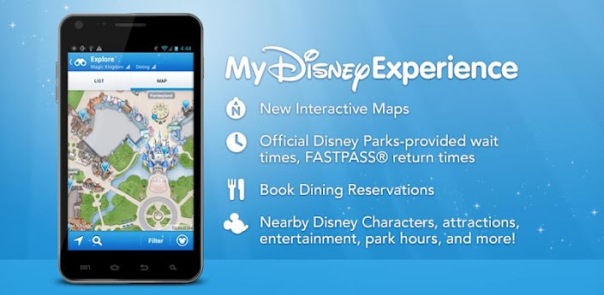
This app is the “official app” from Disney for your vacation. The app provides a ton of tools to use in the parks including Ride Information, Character Meet-Up locations, Dining Options, Guest Services, and even Shopping.
The My Disney Experience App is something you definitely need while you’re in the park, or even before you’re in the park for planning purposes. Let me share how I used the app for our trip.
Using the App in the Parks
 I used the My Disney Experience App for two major things while in the park. First, the app allows you to modify your Fast Pass options directly on the device. We had an early Fast Pass for the Rock Coaster in Hollywood Studios. The bus took a long time showing up (one of the few times that happened to us), and the drive to the park was taking longer than I expected it to. Bottom line, we were going to miss our Fast Pass for the ride, and I knew, from reviewing the app, that we had a 45 minute wait if we had to go through the
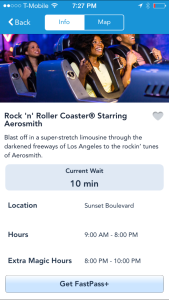 “stand by” line. So I pulled up the Fast Pass options on the My Disney Experience App, located another Fast Pass window, and switched everyone in our group to that window instead. We did indeed arrive at Hollywood Studios after our first Fast Pass had expired, but because of the functionality of the My Disney Experience app, we were able to saunter our way to the ride (taking a family pic in front of the Tower of Terror along the way) and take advantage of our revised Fast Pass window. This is just on example of the many times I adjusted our Fast Pass times with this app. We actually switched which park we were going to one of the days, and I was able to completely reassign our Fast Passes to the other park, all from within the app on my iPhone.

 The second way I used this app in the parks was for Dining. We were doing Quick Service Meals during most of our trip, which is the Disney equivalent of Fast Food. The app shows all of the Quick Service restaurants in the parks with menus provided. On our day in the Magic Kingdom we needed to find a location for dinner. While others in our group rode Dumbo the Flying Elephant, I pulled up the Dining options and took stock of what restaurants were around us (some restaurants have limited hours, and the app indicates that). By the time everyone was done flying I had narrowed it down to two places. With the whole group gathered around, I told them what foods each place offered, and the general consensus was to skip to gourmet mac and cheese of the Friar’s Nook (my choice), and head over for burgers and chicken in Tomorrowland at “Cosmic Rays Starlight Cafe”. You can’t win them all. Having all of the menus at your fingertips is a great feature, and something unique to the My Disney Experience app. If you are doing Table Service Dining, you can even make your reservations right from the app. But make sure you do that way ahead of time, because those slots fill up fast, and you’ll have few, if any, options if you do it the day of your visit.
While My Disney Experience provided some great options, including visual maps to guide our way through the parks, another app was my primary tool to make sure we spent more time on rides, and less time in lines. It’s an app called “Touring Plans”.
Touring Plans App

I’m not sure how I stumbled upon the website for “touring plans“. It was probably during my google searches for “planning a trip to Disney”. However it was that I found it, I can say without hesitation that this app was the jewel that made our vacation a smooth ride from start to finish. Unlike the “My Disney Experience” app, this one has a cost related to it, but I assure you that the price of $12.95 for an annual membership is well worth it. Your $13 gets you access to the Touring Plans website, offering tons of tools, including pre-designed schedules, from which the site got their name. You also can full access to the mobile application (available on iOS and Android). The mobile app is available for free, but you can’t access many of the features without a membership.
The “Touring Plans” app offers all sorts of information about the parks. Park hours (including the “extra magic hours” for resort guests), Crowd Calendar, Wait Times, Fast Pass Availability, and Ride information (height, intensity, description, and ratings). Bottom line, the only things missing from this app are dining information, and the ability to change Fast Passes on the go (but you have My Disney Experience for those anyway). While those features might sound similar to the “My Disney Experience” app, I found that Touring Plans was easier to use, and had more reliable wait times for rides especially.
As I looked over the app, I had a feeling of nostalgia that is usually associated with viewing photos from a trip. But that makes sense, since I spent most of my time there staring at these screens. But I wouldn’t have it any other way. Let me share how I used this app prior to our visit and during our time in the parks.
Using the App to Plan the Trip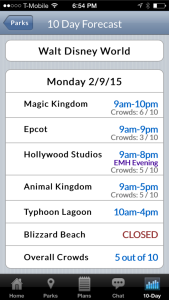
Two months before our trip the family gathered to do some trip planning. Using the “touring plans” application I accessed the “Crowd Calendar” which does its best to predict the tourist traffic each day. We could see the days we would be there, with estimated crowd level. We used that information, along with the days that each park had “extra magic hours” (resort guests get early entrance or staying after the park close to the public) to determine which park we would visit each day. Our planning proved overwhelmingly successful. We had minimal lines, and tons of space as we made our way around the parks. Touring Plans Crowd Calendar proved accurate for us!
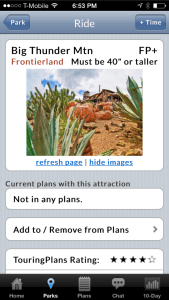 The second thing we had to determine was which rides everyone wanted to go on. Bear in mind we had ages ranging from an 8-year-old up to the Grandparents, so everyone wasn’t always going to agree. I used a spreadsheet to create what I called “The Super Awesome Ride Selection Machine”, and filled it with data gathered from the ride descriptions in the “Touring Plans” app. Then I sat with everyone and had them rate their interest in every single ride (0 – not interested to 5 – we MUST go on that!!!!). In the end I had a good idea about which rides everyone wanted to go on, and when we’d need to split up. I used that information in real-time once we hit the park. We managed to get to roughly 90% of the rides we wanted to get to, and that is thanks to the wait time calculator. But I’m getting ahead of myself.
Using the App in the Parks
The “touring plans” app provides estimated wait times for all of 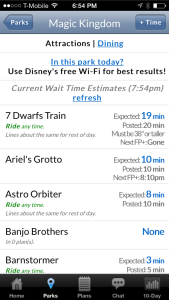 the rides and shows in all of the parks. When you pull up the ride list, you see the Disney posted time (reflected on the My Disney Experience App) and the “expected time” as calculated by Touring Plans. These numbers are derived from historical data and users entering their wait times while they are in line (which is added to the algorithms driving the historical data). I used the app, to time several of the lines we stood in. I verified just about every line’s wait time against the apps expected time and found the app was accurate almost all of the time. If anything, it sometimes stated a longer time than we experienced; it never went the other way! In addition to providing expected wait times, each ride indicates when there is a Fast Pass available, and when the line is expected to get shorter. We planned to ride Big Thunder Mountain again on the day we were in Magic Kingdom. I saw that there was a 40 minute wait as the expected time in Touring Plans. But the app told me that if we waited another hour the line would drop to 10 minutes. We waited (hit another ride in the meantime), and then we rode the ride an hour later with that 10 minute wait! Spectacular.
Anyone planning a trip to Walt Disney World (or Universal Studios – they have this service too), should get Touring Plans. It’s the easiest $13 you’ll spend, and it will definitely make your trip more enjoyable. If you don’t have a tech geek like me in our group, the site offers designed “touring plans” that will literally guide you through the park, hitting all the rides you want to go to at the optimal time. We didn’t use that service, but I can definitely see how it could benefit a group that doesn’t have a person who is fine staring at their smartphone the entire trip.
The Whole Cup Summed Up
As technology increases its presence in our lives, it is becoming more important to be comfortable with the tools. This is certainly the case for a vacation to Walt Disney World. The use of two relatively simple apps will have great benefits for your trip. You will stand in shorter lines, you will use your Fast Passes effectively (we changed some when we realized we had Passes for a ride with a 5 minute wait!), and you will feel more in control of your experience. Need to find a place to eat dinner? The My Disney Experience app has everything you need to know from menus, to prices, to exact locations in the parks. Need to know if it’s worth walking all the way across the park to hit Space Mountain one more time? Touring Plans can tell you how long you will wait before you take one step towards Tomorrowland. These are great tools. They are easy to use. And the first one is free and the second one is a bargain. So make sure to grab these apps before you head to Florida and I’m sure you will have an amazing time!
And when you want to know where to find her, you won’t need a Fairy Godmother…

First Impressions – Basis Peak Fitness and Sleep Tracker
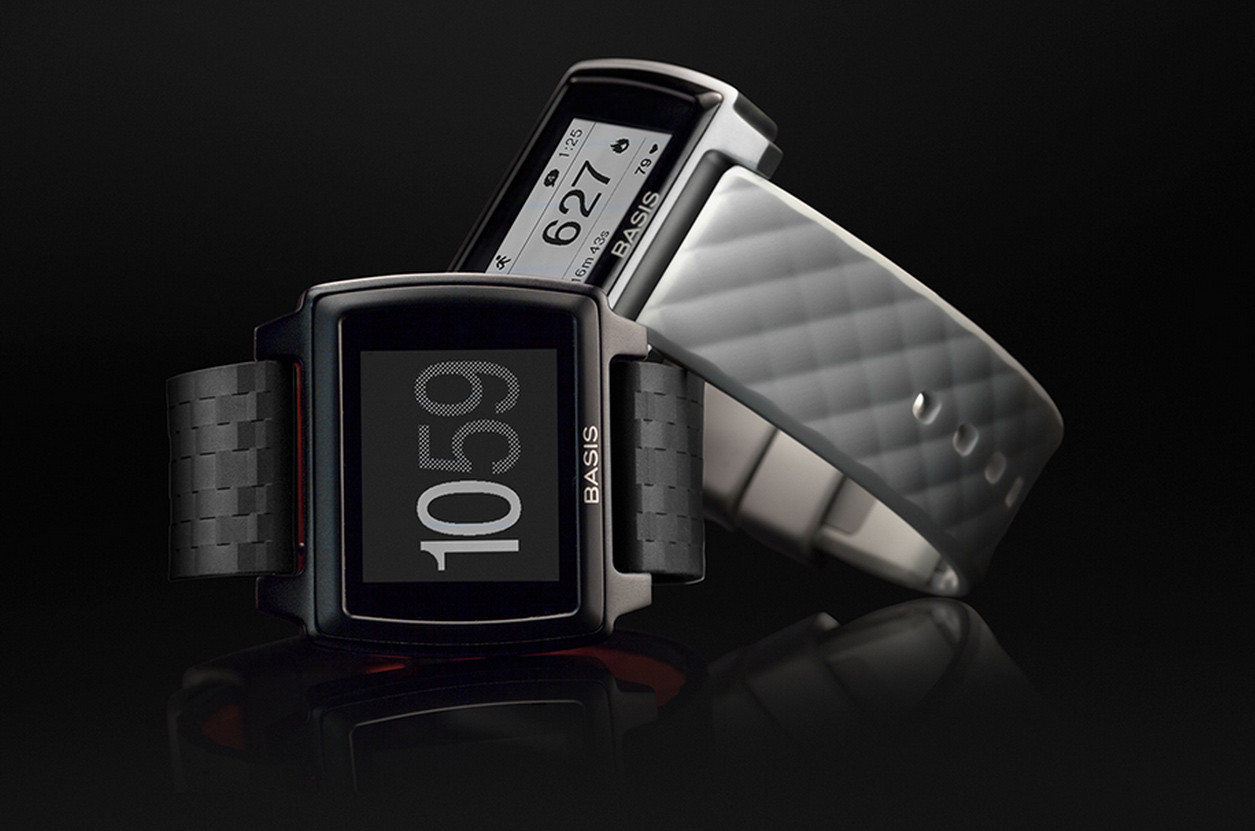
Just when it seemed that the smartphone had eliminated the need for the old wristwatch, along comes the tech industry to reinvent an age old tool. Smartwatches once again dominated the Consumer Electronics Show (CES) in 2015, showing that wrist-based tech is certainly on the rise! From the simple fitness bands like the Fitbit Flex and Misfit Flash, to the souped-up smartwatches like Moto 360, Samsung Gear S, and the forthcoming Apple Watch, the tech industry is very interested in slapping something on your wrist.
But how do you know what is best for you?  Do you even need one? Well, all of that depends on what you value. Do you want fitness metrics like steps, miles, elevation, heart-rate, and calories burned? Do you want a wristband that interacts with your phone to show calls, texts, emails, and calendar notices? The Wrist Tech industry is very diverse, and actually pretty overwhelming when you really start to see how many options are out there. I recently got my hands on one of the lesser known devices. Based on my initial experience, I’d categorize it as a “fitness watch”. It’s called the Basis Peak, and these are my first impressions.
BASIS PEAK – Hardware
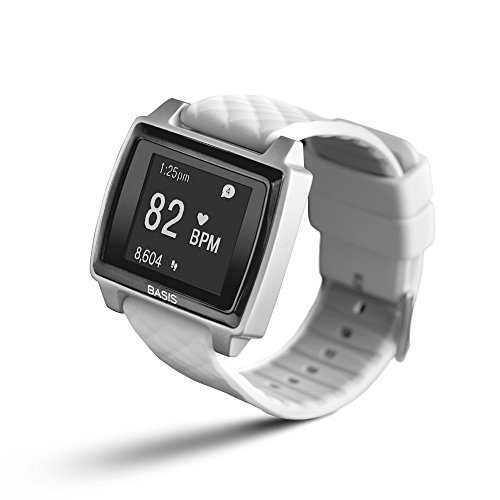 First off, the form factor. The Peak is not too big, and not too small. Weight is also minimal. It has a two tone LCD touchscreen which works very well. It comes with a rubber wristband that I find comfortable. This is important because to get accuracy from the heart-rate monitor it’s essential that the watch be strapped tightly to your wrist.
Battery life has been very good. I’m getting about 3 days of life (from the promised 5 days), but I have been using it a lot. Remember that the high end of battery life is usually found through minimal use. But 3 days isn’t bad, especially for a device that does 24/7 tracking.
The Peak is waterproof. So you can shower and swim with it on and there are no worries. Finally, the device will work with both Android and Apple phones, which makes it a rare breed indeed.
Overall I like the look and feel of the Basis Peak. So let’s talk about what this Fitness Watch does.
It’s a Fitness Tracker
First and foremost, this device is for fitness. It is not trying to compete with the Smartwatch category, at least not directly. The Basis Peak offers a few fitness metrics: steps, calories burned, and heart-rate (we’ll get to that last one in a minute). Noticeably missing from the device are the ability to track mileage (a significant omission), and elevation (which would require an altimeter to work). Many other fitness trackers offer both of those features, and for a premium cost device (the Peak will set you back $200) they really should be included.
Though the metrics are limited, it’s what the Peak does with the data that is pretty cool. The device sells itself as fully automated. You don’t have to tell the device when you go for a walk, take a run, or head off on a bike ride. The device can tell what you are doing, and the device responds with an icon for the activity, and begins tracking the activity as a “work out ” session of sorts. This is a great feature for people who like to track their metrics during exercise, especially those serious runners and bikers. And the key to solid metrics is the heart-rate monitor.
T his is my first experience with a fitness band offering constant tracking of an actual health element. It’s one thing to see if you can get those 10,000 steps in every day and the resulting feeling of accomplishment. It’s quite another when your fitness watch can give you insight into your actual health in real time. I’m quickly discovering that I am pretty out of shape. I know that by watching my heart rate skyrocket, even during a long, slow walk. I am excited by the idea of mobile technology like a fitness watch helping people make better health choices in the moment. The Peak is already doing that for me, after just a few days.
It’s a Sleep Tracker
You didn’t know how important it was to track your sleep patterns, did you!? According to the fitness band/watch industry it’s very important because the feature is pretty much standard on anything strapped to your wrist. I’ve used the FitBit Flex sleep tracker for a while and I didn’t find it terribly useful. That particular tracker only tracked sleep and awake, using “micro-movements”. So it showed me when I moved around in my sleep, but the data didn’t get any more specific.
 The Basis Peak is different, and it’s all because of the heart rate monitor, and something the company calls Body IQ. The device offers several metrics for sleep tracking including: Light Sleep, Deep Sleep, REM Sleep, Toss/Turn, and Interruptions. The phone based app also gives information to help you understand how much of each type of sleep is typical, so you have an idea if you are getting enough of what you need. This is the first fitness watch that I’ve used where the sleep monitor actually tells me something useful and something I can take action on.
It’s a Smartwatch (sorta)
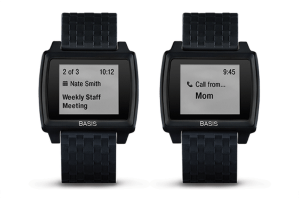 When the Basis Peak first shipped it was strictly a Fitness Watch. It could do everything I’ve already described and nothing else. Then came the “smartwatch update“. This update was promised to early adopters and the company delivered recently with an update that allows Smartphones to communicate with the Peak, showing incoming calls, emails, texts, and calendar appointments on your wrist. The features are still pretty glitchy, which isn’t surprising because it’s so new. I tested both an Android phone and an iPhone and both were inconsistent with delivery of calls, texts, emails, and calendar appointments. Also the “manual sync” button in the phone app of both devices often resulted in an error saying “sync failed”. These issues definitely make the “smartwatch” element of the Peak less reliable.
Bottom line, if you want a full smartwatch experience, the Peak is not the device for you. At least not until they’ve worked through many of the bugs that are currently plaguing it.
The Whole Cup Summed Up
 The Basis Peak is a Fitness Watch. That’s the most important thing to remember. It’s trying to take on some of the other Smartwatches out there, but it’s just not there yet. The fitness metrics offered by the Peak are pretty standard, and nothing to get too excited about. What I am finding most useful is the Heart Rate Monitor and enhanced Sleep Tracking. In the end, the purpose for wearing a fitness watch or fitness band is to help you make better choices about your health, and the heart rate monitor is proving an excellent tool for me in that regard.
The Basis Peak will certainly get better in time. The company promised a software update and they delivered. This is no small feat, especially for a smaller company. This builds customer trust and that is essential for the fledgling industry of Wrist Tech.
The device currently cost $199 and comes in a couple colors. 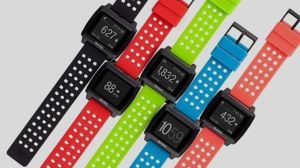 You can swap out your wristband to jazz it up too. My opinion, based my first impressions of the Peak, is that it is overpriced for the features it offers. A $200 fitness watch should at least offer mileage tracking. It also wouldn’t hurt to put in that altimeter so users could track elevation (I used to challenge myself to take the stairs!). At a premium price, it should offer every feature possible. The only justification for the high cost would be the inclusion of “smartwatch” features, which the company is starting to offer. But the phone connectivity is still unreliable, and so be prepared for some frustration if you plan to use those features.
Mobile Health is taking off, and fitness bands and watches are leading the charge, providing valuable health data on your wrist (and your phone). This is technology that truly has the potential to change lives. Unlike the majority of tech updates (tablets, phones, and gaming consoles), wrist tech is often focused on health. At the same time these devices can keep you connected to the things that you value, in a way that involves minimal interruptions from technology.
These two elements in partnership on a small device like a wristband will revolutionize how we communicate with our friends and family, and with our doctors too! Great tech should be easy and life enhancing, and that’s the direction we are heading!
Apps of Note – Yahoo News Digest

In recent years Yahoo has been in the midst of a brand shift. They changed everything from their leadership to their logo. The company that was the “Google” of its day, has been looking for a way to get our attention, especially on our smartphones and tablets. They released a Weather App, which I also highly recommend. That app took advantage of the finger swiping we’ve all grown accustomed to on our hand-held devices. I’ve been using Yahoo weather since the day it was released. When I heard that Yahoo was releasing a News App, I was pretty excited to see if they could give me a similar experience, but this time instead of the 10 day forecast or storm warnings, they would give me a dose of the daily news. In my opinion, they certainly delivered.
Do you like to be informed on the daily news without feeling the need to become a news-junkie? Do you prefer your news to come in a package that you can knock out in five minutes flat? Then I’ve got the app for you. It’s called the “Yahoo News Digest”.
The Cup Half Full
The real genius of the Yahoo News Digest is you get the amount of news you want, which can be a quick glance, or an in-depth read. It’s up to you how far you want to dig. When you open the app, you get a list of 7-12 news stories stacked for a quick scroll through vertically. Each story is categorized (World, US News, Politics, Arts, Science, Entertainment, etc.). If you just want to see the high level news, one swipe and you’re done. Just the headlines and sentence or two. To go another level in, just tap which ever story you want to read and a short news article appears. Swipe up and down and you can read the article. Swipe left and right and you’ll be jumping through each of
the articles you had in the main screen. It’s fast!
Each article includes links to larger news stories, or relevant articles to consider for further reading. Once you’ve read all the articles available, you get a “Did you Know” fact that is related to the day or one of the articles you’ve just finished. It doesn’t take long to quickly scan through all the content, which is saying something in the world of the never-ending news cycle.
The Digest is delivered twice a day, and you set the time you want to receive it. My morning digest comes at 7am, and my evening one at 6pm. Finally the app has all the standard social networking links, so if you want to tweet about an article, post it to your Facebook wall, or email it to a friend, the buttons are right there for your clicking pleasure.
The Cup Half Empty
 The Yahoo News Digest is intended to be a “twice a day news” resource. If you want up-to-the-minute breaking news stuff, the Digest will not suit your needs. I put that as a “half empty” element, though for me, I like that it doesn’t constantly update with new information. Once I’ve read my 10 articles, I’m done till the next Digest is delivered.
You also have basically no control over what news you receive. Most news apps have a lot of customization built into them. Not interested in Kim Kardashian and the Hollywood crowd? Just turn of the “entertainment news” and you’re good to go. That’s not an option with the Yahoo News Digest. Though I’ve never seen a Kardashian article yet, so that’s good. Everyone gets the same “paper” for every daily edition, and for many that could be seen as a bad thing, in an age where we like everything customized for us.
The Whole Cup Summed Up
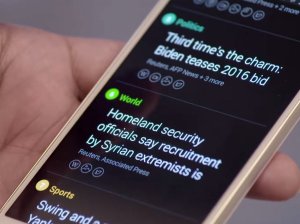 The Yahoo News Digest is trying to do something very specific. Provide two daily doses of relevant news for the masses. The interface is clean and easy to use. The tap and swipe approach makes this app great for people just getting into smart phone and tablets. The ability to read stories quickly, but also dig deeper into the “in-depth” elements is great for a news-junkie like me.
But at the same time, Yahoo’s “one size fits all” approach to the app will certainly frustrate some users who want to only see news about things they are interested in. If that’s you, I recommend checking out “SmartNews”, which take news customization to a crazy place, and is also one of my go-to news apps that I use every single day.
I really like the Yahoo News Digest and think that it truly is news for masses. It’s the daily and evening paper of yester-year in a cool new package. So stay informed without the distraction of news apps that consume time and attention. Because it’s much better to experience the world than read about it.
Available on Apple and Android Smartphones and Tablets for FREE!

First Impressions: iPhone 6 – It’s Pretty Awesome!

I’ll admit it right out of the gate, I love this phone. It’s simply awesome. And now I sound like the typical Apple fanboy who can see the iPhone do no wrong. But that’s not the case. I love (and hate) Apple and Android both equally. I’ve had both devices over the years. I just switched to the iPhone 6 from the HTC One (M8) which was an excellent Android smartphone. In my opinion, the iPhone 6 is simply better; and this is especially true for the casual user. And that’s who I’m most interested in.
Disclaimer: Many of the items I will discuss here are also available on the iPhone 6 Plus, which I’ve reviewed previously. I intentionally focused on what makes the “plus” different from the iPhone 6, as not to be too repetitive. So if you like what you see here, but would like the larger 5.5 inch screen, the iPhone 6 Plus might be a better choice. But read my review before dropping the coin!
iPhone 6 
It seems like Apple has always been mired in one debate: is the company revolutionary or evolutionary? Apple fans believe that their beloved company is truly revolutionary, creating new markets for products out of thin air (iPhone, iPad, iTunes). Others, mostly Android fans, would argue that Apple doesn’t “innovate” but is rather copying already existing technology while, arguably, evolving the devices along the way (iPhone, iPad, iTunes – see what I did there?). As a true tech junkie, I don’t have a horse in that race. Apple is both in my mind. And the rest is just marketing (which no one disputes they do better than anyone else). For the sake of this review, I will side with evolution, because that’s really what the iPhone 6 is all about.
The Cup Half Full
I’ve mentioned the amazing design in previous posts, but it can’t be overstated. The difference between the iPhone 5/5S and the iPhone 6 is stunning. And the most stunning is that it isn’t as revolutionary as it could have been. All sorts of “mock-ups” flooded the internet leading up to the announcement of the iPhone 6. Many showed a major departure from the previous model; truly revolutionary design. Apple didn’t go that way. And for a company dominating the US Market with millions of consumers using their devices, major shifts are usually not advisable. The iPhone 6 is bigger but skinnier. It has the same alumimum/glass construction, but the glass is rounded on the corner, giving the face of the phone an entirely different look and feel. So first and foremost the iPhone 6 is a brilliant evolution of the design of the iPhone. It fits perfectly in the hand. I have bigger hands, and always felt the iPhone 5/5S was actually a little too small for me. I think there’s a reason Ap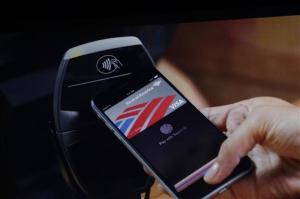 ple went with 4.7 inches for the screen versus 5.0, and it’s all about how that device sits in your hand for one-hand use.
In addition to the form factor, the iPhone 6 has many new features coming with iOS 8. The inclusion of Near Field Communication (NFC) partnered with Apple Pay will only prove useful if retailers adopt the program. I, for one, like the idea of using my phone to make purchases. And if you are concerned about security, I suggest checking out this link to see how Apple Pay works, because if anything this system would be more secure than our traditional swiping credit cards (assuming it works).

iOS 8 also allows you to respond to text messages and emails directly from the notification as they come in (I just did this while writing this review). It’s all about fast interactions with your phone. The iMessage app has also been updated to allow for voice messaging with a single button push, and instant pictures and videos sent over iMessage. I’m in favor of anything that makes my tech interactions faster. While I love interacting with technology, I prefer to use time efficiently, and clicking through six screen when it could be one tap is a great evolution in speedy tech. Third party keyboards are now also available (via the App Store). If you’ve longed for the ability to swipe your words versus tap them, now you’ve got options. Swiftkey and Swype are two good places to start for keyboards.
The Cup Half Empty
Apple is a closed system, famously so. Coming from Android this time around there are things I can no longer do that I liked doing on my HTC phone. I’ve sung the praises of “launchers” that replace the Operating System with different hybrids. Nothing of the sort will be found in the App Store, no matter how deep you dig. You get the grid. Apple did allow for widgets in the Notification Screen, but widgets are easily the most confusing piece of the Android system, and so Apple has hidden them away to keep distractions from their clean ecosystems to a minimum.
HealthKit was supposed to revolutionize how we see mobile health, and it failed on the first day. Apple is quickly putting out new updates to iOS 8 to rectify this problem, but it’s still a problem. So if you planned to have the iPhone 6 be your one stop shop for fitness and health tracking, you’re gonna have to wait a bit longer. Though the pedometer element is currently working (my phone is tracking my steps just like my old FitBit Flex).
The Whole Cup Summed Up
I’m sure as my eyes come back into focus in the coming weeks after being star-struck by the iPhone 6, I will find more things to add to my “half empty” part of the cup. But at the moment there’s not a lot I can say that’s negative about this phone. It’s better than all of the current flagship Android devices. Granted, it’s only in that spot because they took many features straight from the Android ecosystem and added them as “innovations” to the iPhone (What’s App has had all of the functions of the new iMessage for some time now).
If you’re debating between the iPhone 6 and the iPhone 6 Plus, head to your nearest retailer (Target, Best Buy, Walmart, Cellular Carriers) and get both devices in your hand. I’m on the side that says the iPhone 6 Plus is simply too big for the casual tech consumer. But you’ll have to be the judge for yourself.
First Impressions: iPhone 6 Plus

The newest iPhone is out and people are clamoring to get their hands on it. The fact that Apple sold over 10 million units in the first weekend seems to indicate at least some level of consumer interest. If you google iPhone 6 you will find no shortage of reviews about Apple’s newest phone offering. You’ll see things about design and durability. But, like many tech sites, many of these reviews can become quite technical. What you’ll find here are my first impressions of the iPhone 6 Plus, and how I think it can make life easier, or harder, as the case may be.
iPhone 6 Plus – Disclaimer
The iPhone 6 Plus is BIG. I’m saying that from the perspective of a guy who used a 5 inch HTC One (M8) for a period of time, and thought that was big. If you are at all leery about having a huge phone, read no further, the iPhone 6 (with it’s 4.7 inch screen) is your best choice. But if you are okay with a phone that won’t fit in your pocket (unless you bend it!) and a phone that will constantly require a second hand to use it efficiently, read on.
The Cup Half Full
So how does the iPhone 6 Plus make the phone experience better? First off is the design. Compared to the Note4 or LG G3 (two competing phablets), the iPhone 6 Plus is a beauty. It’s super thin. It’s smooth aluminum back and rounded corners are an absolute delight to look at and it feels great in the hand (though I recommend a case to avoid it slipping out of your hand, here’s mine). The long held design of the screen (with an app bar at the bottom, and stat information at the top) make much better use of the space compared to rivals, which only makes the screen seem larger and more useful.
The phone has a larger battery, which should allow for much longer periods between charges. Only time will tell though. The device also has an improved camera with image stabilization. This could be a big deal. In simplest terms, the camera in the iPhone 6 Plus is designed to help those of us with shaky hands. Not a feature to underestimate. Finally, the iPhone 6 Plus has some innovations in the way the screen works, taking full advantage of the larger screen. This means that some apps (like email and messages) will actually look different than the apps on the smaller iPhone 6. Also when the phone is in landscape mode, the “app drawer” will move from the bottom to the side. Seems funny to me that the iPad Mini doesn’t even do that. So there are no shortage of good things going on with the iPhone 6 Plus, but the pendulum still swings both ways, and this is where the device starts to worry me.
The Cup Half Empty
While beautiful in design, the iPhone 6 Plus has one “big” problem. This device is huge. But here’s the trick; it’s supposed to be. It’s a phablet, which is the horrid word somebody came up with to describe a device that is part Phone and part Tablet. When the phablet device came into it’s own with the Samsung Galaxy Note, the device had a very specific purpose. It was a device competing more with the 7 inch tablets than against 5 inch phones. It was and is a device for “power users”. You know the corporate types that used to live in their blackberry screens. The phablet is trying to be more than a phone. In terms of regular consumers, the phablet is a good choice if you don’t already own a tablet device (iPad, Nexus 7, etc.) If you don’t want two devices, the phablet bridges the gap (which is even more relevant when cost is factored in). And that’s what the iPhone 6 Plus is. It’s a phablet. But I worry that through a combination of factors, both on the part of Apple and consumers, people don’t realize this. And that could be a problem down the road. I’ll explain.
By  launching both iPhones together, Apple made it look like they were selling two sizes of the same device. When in fact they are selling the next iPhone (iPhone 6) and their first phablet (iPhone 6 Plus). People jumping from the 3.5 inch screen of the iPhone 4/4S or the 4 inch screen of the iPhone 5/5S are in for serious culture shock when they try to wrap their hands around the case holding the massive 5.5 inch screen of the iPhone 6 Plus. I believe that Apple set the precedent a year ago when they released the iPhone 5S and iPhone 5C at the same time. The iPhone 5C was clearly the silver medal to the gold of the iPhone 5S. So most people think the same is the case with the current generation of the iPhones. That reasoning would lead people to conclude the iPhone 6 Plus is the one to get if you want the “best” one. And that’s why the backorders for the larger device stand at 3-4 weeks, where you can get your hands on the iPhone 6 in 7-10 days. And after waiting all those agonizing weeks, these new iPhone 6 Plus users are going to realize that their new phone requires two hands for most of the things it can do. And while we might think that’s a small thing, that’s probably because we’ve grown so accustomed to single handed cell phones we take that convenience for granted.
 Both iPhone 6 models have a new feature to help address the increased screen size, and it’s called Reachability. Basically you double TAP (not click) the home button and the screen lowers itself about 1.5 inches, bringing the top of the screen closer to your waiting thumb. On the iPhone 6 this functionality works very well. But based on my hands-on experiences with the iPhone 6 Plus, based on where we generally place our hand when holding the phone, the size makes it virtually impossible to reach either the home button (for the tapping) or the top of the screen (to pull down notifications). You must either move your hand down or up, or use your other hand to tap the home button. And that is a problem that “reachability” on the iPhone 6 Plus didn’t fix.
The Whole Cup Summed Up
So think carefully as you consider the iPhone 6 Plus, over the iPhone 6. While you get increased batter life, a better camera, and a larger screen, you also must contend with a massive phone in your pockets and in your hands. That’s my biggest beef with the iPhone 6 Plus. It’s so much like the iPhone 6, just much much bigger.
Apple has designed a beautiful phone, no doubt, but I believe the 4.7 inch design of the iPhone 6 is the current sweet spot as far as comfort and usability. But if you want the larger screen, the iPhone 6 Plus certainly has enough to offer to make it worth it. Though one of these thumb extenders might come in handy…

Review Links – Apple Watch, iPhone 6, iPhone 6 Plus, and Apple Pay
By now you’ve probably heard all about the new products that Apple announced on Tuesday, and you want to learn more. The internet can be a daunting place when you go looking for good reviews of new consumer technology.
Below you will find links to some of the product reviews I’ve read for each new Apple product and service, so you can evaluate any future tech purchases you might be considering. Enjoy!
APPLE WATCH REVIEWS
Apple Watch Hands On – The Verge
Apple Watch Hands On – Engadget
Apple Watch Hands On – MacRumors

iPHONE 6 REVIEWS
iPHONE 6 PLUS REVIEWS
iPhone 6 Plus Hands On – The Verge
iPhone 6 Plus Hands On – Gizmodo
APPLE PAY REVIEWS
Apple Pay Hands On – TechRadar
Apple Pay (How It Works) – Digital Trends
Apple also announced the release dates for the iPhone/iPad operating system iOS8 on Wednesday, September 17th. It will be compatible with iPhone 4S, iPhone 5C, iPhone 5, iPhone 5S, iPhone 6, iPhone 6 Plus, iPad 2, iPad with Retina, iPad Air, iPad Mini, and iPad Mini with Retina. If you have an iPhone 4, you’re out of luck. There’s no cost for the upgrade.
iOS 8 REVIEWS (BETA VERSION)

September Big Consumer Tech Announcements
If you are considering a new smartphone or phablet (i.e. giant smartphone), or if you’re interested in being an early adopter of the smartwatch industry, this September has several new products you’ll want to consider. Motorola, Samsung, and Apple are all releasing new smartphones and smartwatches. There’s sure to be a lot of competition, so do your homework before jumping into any device. Each company has pluses and minuses to consider. And smartwatches are probably going to be clunky for a while, so don’t slap down cash for those unless you’re prepared for the headaches of an early adopter (I know from experience!)
It’s going to be an exciting first couple weeks of announcements, and I’m looking forward to reading all the “hands-on” reviews afterwards. Will the iPhone be a major update (bigger screen, different body style)? Will there be an iWatch? Will one of these smartwatches be priced at anything other than premium rates!? $200 seems to be the lowest price so far. All these questions and more will be answered in the next two weeks! Stay tuned for some “first impressions” here at “Have a Cup of T(ech)”!!
| 9/3/2014 | 9/3/2014 | 9/4/2014 | 9/9/2014 | In October |
| Wednesday | Wednesday | Thursday | Tuesday | ??? |
| Samsung | Asus | Motorola | Apple | Razer |
| Galaxy Note 4 (phablet) | ZenWatch | Moto X+1 (smartphone) | iPhone 6 (smartphone) | Nabu(Smartband) |
| Galaxy Gear S (smartwatch update) ANNOUNCED 8/28/14!!! | Moto 360 (smartwatch) | iWatch (smartwatch) | ||
| Moto G (smartphone) | iOS 8 release date | |||
| OSX Yosemite release date |
The Device I Can’t Wait To Use – Razer Nabu Smartband
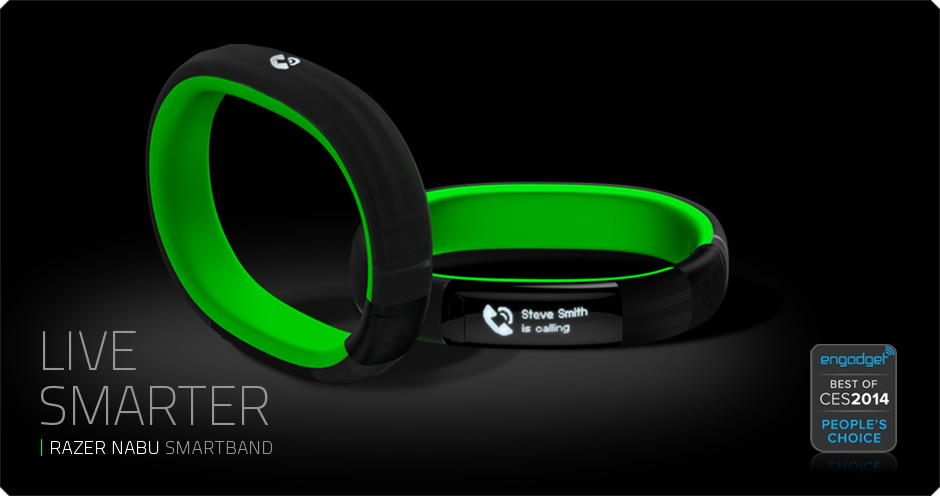
For the past month I’ve been introducing one device to everyone I know (and a few I don’t). And now I want to share it with you. Of all the upcoming devices this fall, this is by far the one I’m the most excited about. It’s called the Razer Nabu, and to say it’s a smartwatch would only give you part of the picture of why this device could be a bombshell in the current tech wars for our wrists. The Nabu has three areas of focus: notifications, fitness tracking, and a social element. While each of these areas has clear competitors, it’s when you put it all together that the smartband becomes something truly revolutionary. And the rumor that the device will sell for less than $100 is nothing but astounding.
It’s a Smartwatch
First and foremost the purpose of a smartwatch, in the current market, is to be an accessory for your smartphone. It’s a way to review incoming calls, read text messages, and perhaps even email. The Nabu does all of that. And their website hints at integration with even more tools like facebook, twitter, google maps, and skype. What make the Nabu different is how it notifies and how it is interacted with. Notifications come through via a small vibration. The screen is positioned on the inside of the wrist (they call it a privacy screen). You flip your wrist over to see the screen and that activates it (battery savings here!). Once you read the notification, you can press the button to dismiss, or simply shake your wrist and the screen goes blank. That’s pretty cool! You could almost say it’s a no-handed approach to notifications.
It’s a Fitness Tracker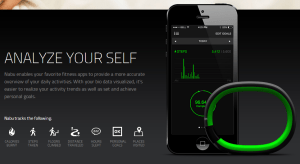
Simply put, everything a top of the line fitness tracker can do, the Nabu can too. It tracks steps, miles, floors, and calories burned. It’s a step above the Fitbit Flex wristband, being that it has an altimeter to measure flights of stairs. The expected price point for the Nabu puts in on the same level as the FitBit Flex, and cheaper than fitness trackers from Nike, Jawbone, and Garmin (among many many others). The fact that you are getting all the smartwatch features on top of your fully functional fitness tracker is like icing on the cake.
It’s a Social Connection Tool
Here is where the Razer Nabu gets completely ridiculous, and where my skepticism is introduced. I have no doubt that they can release a wristband with a unique notification system and a fully featured fitness tracker. What they plan to do with the social element of the Nabu is where they could truly be moving into uncharted territory. Since the device isn’t out, I can’t verify anything, but here, essentially, is what they plan to do.
Say you’re out at the bar and you meet someone and you want to exchange information to get in touch in the future. Old school days, you’d be writing a phone number on a napkin or your hand. Recent years, you’d be calling each other’s cell phones to add it to your phone book. In the world of the Nabu, if you both are wearing the wristband, all you have to do is shake hands or high five and the information is exchanged. If it works in the bar, imagine how it could work in the business world. Say goodbye to business cards, it’s all in your wrist! That could be revolutionary, if it works. And it could lead to storing more information in your wristband, like your credit card for purchasing with a swipe of the wrist. Who knows where this could go!
Razer Nabu Smartband – Coming Soon!
So that’s what I’m super excited about these days. The device was supp osed to roll out months ago, but it was held back to deal with questions about hypo-allergenic issues, which recently caused the recall of FitBit’s top wristband. So this company is taking it’s time to give us something awesome. Razer is well respected for it’s gaming peripherals (read keyboards and headsets) so they aren’t some Kickstarter with a dream (though sometime those work too).
The device is supposed to launch in October 2014 and will be compatible with Apple and Android from the very beginning! So check out their official website, and watch the cool video showing this thing in action. And if you’re still on the fence, you can wait for my review once I finally have this amazing little device on my wrist!
Below you’ll find some reviews from people who’ve actually used the Nabu Smartband.
Apps of Note – Hanx Writer (iPad app)

Sitting atop the free apps in the App Store is an odd choice. It’s a typewriter app. It’s actually the typewriter app that I am using to write this short review.
So, I guess Tom Hanks (yeah the ‘life is like a box of chocolates’ Tom Hanks) is really into typewriters. Seems to border on an obsession, but then again, I can think of worse things for a movie star to spend all his piles of money on. Mr. Hanks has decided to try and infect the rest of us with his typewriter hysteria, by way of the “Hanx Writer“.
The Cup Half Full
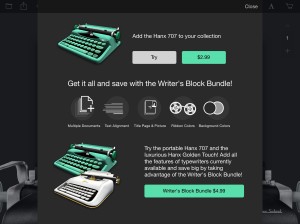
The app comes with one free typewriter interface, and it’s a decent design. You get an onscreen keyboard with buttons that actually move down as you press them. Of course half of the fun of typing on a typewriter simulator is the clicking sound of each letter and the PING of the carriage return. Fear not! There is no requirement that you physically move the carriage tray back to the left once you reach the end of the page (though you gotta admit that could be kind of cool). You get all the standard word processing options, including spell check, and the ability to backspace (no white out required). But for the courageous, you have the ability to turn off “modern delete” and type without the ability to correct. I am not that brave. While the free typewrite is decent, you do have the option to add additional typewriters for $2-$5. I’ve already made the upgrade to the “Writer Bundle” for $4.99 (see above).
The Cup Half Empty
There is a glaring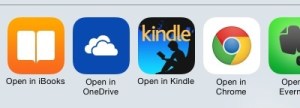 issue with this app, which has been well documented in the app store reviews, and it’s all about the export options. Basically you are typing a PDF document on this app. I say that because all of the export options (of which there are actually quite a few) only let you export in PDF format. You can’t export to Word or even to Pages. You can send it to Microsoft’s One Drive cloud storage, or Evernote, iBooks, or Kindle, but all you can do with the document there is READ it. I have found that you can copy and paste into any word processing app you might be using, so there is that. Though it’s certainly not ideal. I wouldn’t be surprised if the popularity of this app brings about some new exporting options in the future.
The Whole Cup Summed Up
The Hanx Writer is certainly a geeky indulgence. Are there better writing apps out there, with enhanced functionality? Of course there are. But the joy found in the sound of each button press is definitely something that will trigger the romantic side of many writers. The idea that we are getting a taste of an old way of crafting words and sentences into characters and story.
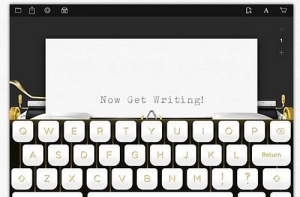
I’ve long held that the technology that captures our fascination and imagination the most are those that offer new ways of doing things with which we are familiar. And the Hanx Writer, typewriter simulator, is the essence of that idea turned right on its head! Doing something old on something new, in a revolutionary way!
So if you have an iPad or iPad Mini, and want to take a trip into composition’s past, grab this app and get typing!
 Have a Cup of T(ech)